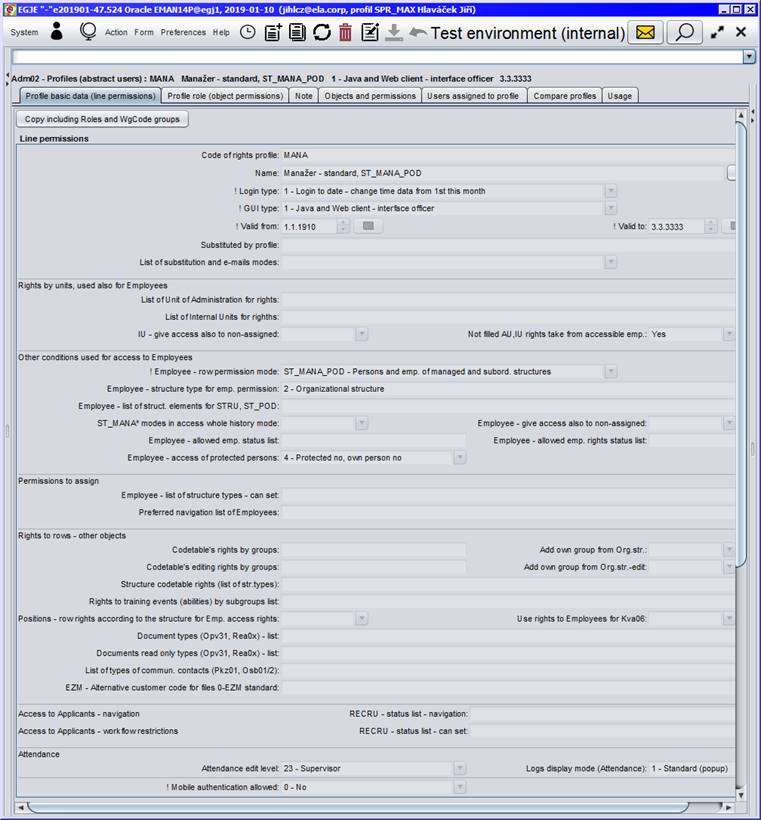
Elanor – EGJE
Operational documentation
Documentation index (html)
Documentation index (doc)
1 Contents
2.1 Implementation of application server
2.1.1 Application server in standard configuration
2.2 Implementation of server for module EGJEWeb2, HR Portal
2.3 Operation via terminal servers
3.4 EGJEWeb2 client workstation
3.6 Launch Parameters for EGJEWeb2
3.6.4 HR Portal Called as a Portlet
3.7 Email server connection configuration
4 Installation and dimensioning of parameters
5 Database Management regime - Data schema Elanor EGJE
6 Application administration – update procedure
6.1 Setting and modification of parameters by means of utility Configurator_egje
6.1.3 DB – Connection to database
6.2 Settings and changing parameters using the utility „MultiConfigurator“
6.3 Adm51 – Database update procedure
7 Administration of application users
7.1 Creating a user – brief summary
7.2 Rights for objects and lines, roles and profiles
7.2.1 Definitions and basic questions
7.2.2 Setting access rights in application
7.2.3 Rights objects configuration
7.2.4 Substituting user's profile
7.2.6 Attachment – model of EGJE access rights
7.2.7 Special object rights objects
8.3 Rtf reports and user reports - direct MS Office call
8.3.1 Technological requirement
8.4 Mail merge – Documents DOCX ELA
10.3 User report creation and distribution
10.3.1 Transfer the user report to another db
10.4 The distribution of Elanor user report
10.5 The previous version of the report
11 Release and Patch installation with SuperConfigurator utility
11.1 Patche - release installation:
11.2.1 SuperConfigurator - restriction to run using Adm51 form
11.2.2 Run SuperConfigurator without parameter
11.2.3 SuperConfigrator and command line
11.2.4 SuperConfigurator – bulk parameters settings
12 List of permitted formats for uploading to the system
13.1 Attachment A1. Installation of Oracle version
13.2 Attachment A2. Installation of MS SQL version
13.3 Attachment B. Installation of software equipment (java client)
13.3.1 Installation of template to run std. client via EWS
13.3.2 Installation – standard EGJE client via batch files
13.3.3 Installation - common programs for more databases
13.3.4 Installation - standard client run parameters
13.4 Attachment C1. Installation of EGJEWeb2
13.4.1 Rozdíly v instalaci Tomcat 9 a Tomcat 10
13.4.3 Tomcat and cookie – attribute SameSite
13.4.4 Operation EGJEWeb2 via loadbalancer
13.4.6 Setting Apache httpd headers (Apache Hypertext Transfer Protocol Server)
13.5 Attachment D. Installation of EGJE Application server
13.6 Attachment E. Logging - AS, EGJEWEB2
13.7 Attachment F1. JRE settings for servers - AS, EGJEWEB2
13.8 Attachments G.-J1. about monitoring are available in Czech and Slovak language only.
13.9 Attachment K. EGJE and Web Services
13.10 Attachment L. More messages in any logs
13.11 Attachment M. Basic description of databases’s locks
13.12 Attachment N. Next Security
2 Introduction – technology
Elanor Global Java Edition (EGJE) is a system for processing human resources (HR), in other words the personnel and payroll agenda.
From technological point of view, the system consists of SQL database, user workstations and, if applicable, the application server, or server for EGJEWeb2. The system is created using the Java programming language, only very small parts are programmed directly in the SQL database in its native language, resp. som parts of EGJEWeb2 are written in JavaScript language
Application server uses java environment. It is possible to use OpenJDK java or java from Oracle SE subscribtion.
EGJEWeb2 uses servlet container Tomcat.
Application is distributed as follows: it is stored on the internal web server of the company (or, in worse case, on file server) and subsequently access is enabled for workstations by system EGJE Web Start (EWS).

Mobile access is solved using web technologies (EGJEWeb2). The application is built using "Responsive web design" technics and adapts the environment in which it is launched.
Special authentication for mobile devices is also available. There is a possibility to set up same restrictions for mobile access.
2.1 Implementation of application server
Question whether to implement application server or not depends in particular on network and memory requirements and on the load distribution. Application server communicates with the application using the RMI technology.
2.1.1 Application server in standard configuration
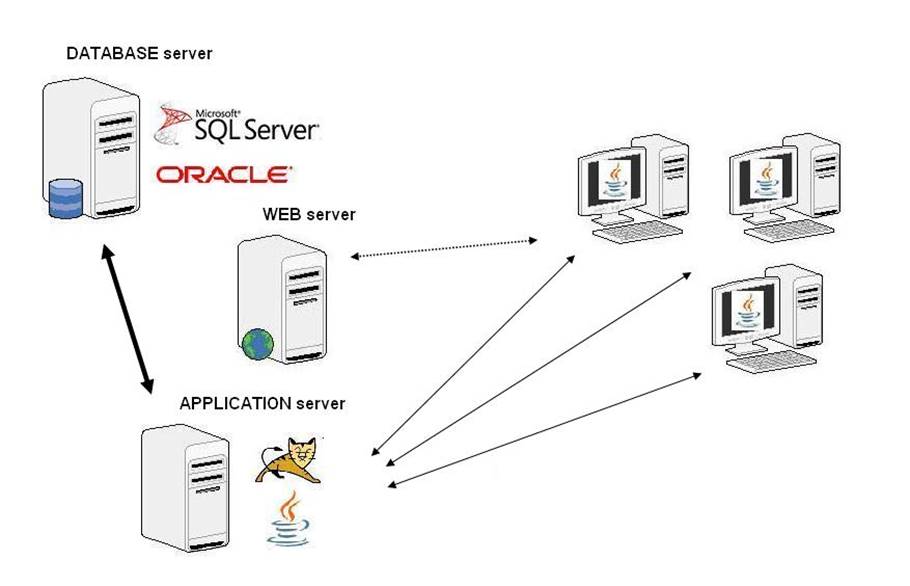
- application server is not mandatory component
- from e201905 also EGJEWeb2 server can offer AS functionality (on Tomcat)
- communication between client and AS is realized via RMI (and encrypted by default)
- communication is compressed (to reduce a network traffic)
- differences from client only regime:
- client station is not configured to
connect to database
it can be without db server access completely - client station doesn't own database connection (more secure)
- authentication is on application server
- whole communication is encrypted (ssl/tls by default)
- client station is more memory efficient; on the other side - application server should be enough strong
- server provides for access to information often faster
- administrator can control tasks and client access (Adm51)
2.2 Implementation of server for module EGJEWeb2, HR Portal
Module EGJEWeb2 serves as a user interface for an employee, or manager respectively. It however depends on implementation whether the manager (and possibly which one of managers) will be using simple web client HR Portal or more function-rich EGJEWeb2 client or java standard client. This application also provides most of the functionality for referents.
HR Portal user interface is a separate business item.

- Application EGJEWeb2 is Java Servlet application; it uses GWT framework and ExtJs components. This application uses and make available reports and forms from the standard EGJE java client.
- Application uses identical technology for processing the database (elanor datasource or JDBC) and the same technology for creating reports (Jasper Reports) as standard EGJE, while reports from the standard application are fully transferable to web solution, while forms transferability is 90%.
2.3 Operation via terminal servers
In general, the application may be operated via terminal servers (Citrix). A server’s performance and memory only needs to be sufficiently sized.
Also, integration with user’s environment is slightly more complex (mail merge, exports to XLS, e-mail communication) because SW, which takes over the outputs from EGJE and processes them, is usually located on the user’s workstation.
There is necessary to allow html clipboard in citrix - http://support.citrix.com/article/CTX112063
to work with html columns filled via clipboard (e.g. Zpu01 / Content)
The following options are available for running EGJE on the citrix installation:
· Direct triggering via javaw resp. batch execution from a file server - Recommended!
(especially if there are multiple Citrix servers)
see Appendix B: Installation - Alternative EGJE Batch Startup
· startup via EWS - the disadvantage is the application cache increasing the size of the user's home directory, but it is possible to use the system cache.
3 HW and SW requirements
3.1 Summary
Database:
· Oracle
· Oracle 12c R2, 18c, 19c
· MS-SQL Server
· Microsoft SQL Server 2014
· Microsoft SQL Server 2016
· Microsoft SQL Server 2017
· Microsoft SQL Server 2019
· Microsoft SQL Server 2022
User Workstation for java client
· Generally, any workstation with sufficient performance capabilities and can be used with Java 11, Java 17 or Java 21 (only LTS version, other one are not supported from Elanor), with PDF reader and access to printer, or with its local printer.
· Recommended minimum resolution 1366 x 768
·
We also recommend to install software capable of
processing export files XLSX, CSV, XLS
(Microsoft Office or Microsoft Excel viewer or OpenOffice/LibreOffice)
Application Server
·
Generally, any server which can be used with Java
11, Java 17 or Java 21 (only LTS version, other one are not supported from
Elanor).
It does not necessarily have to be a standalone server, for smaller
installations it is possible to use common location with database server.
· Application server is not a mandatory component; implementation on EGJEWeb2 is optional as well.
·
AS installation uses Tanuki wrapper
For 64-bit Windows is Tanuki wrapper commercial appl.only for other free
version is sufficient.
See appendix D.
Server EGJEWeb2
• Server with Java 11, Java 17 or Java 21 with servlet container Apache Tomcat version 9.x (tested under Windows and Linux OS)
• For Tomcat 9.0.x version we recommend minimum version 9.0.33. Version 9.0.31 is not recommended. I could cause problems while uploading files
• Version Apache Tomcat 10 is not supported yet
• The support of version Apache Tomcat 7.X and 8.x has been finished (https://endoflife.date/tomcat)
• Installation is described in appendix C1
EGJEWeb2 user workstation
· Web browser (Google Chrome, EDGE, Firefox). Browsers IE and Safari are not supported.
· Recommended minimum resolution 1366 x 768
· PDF reader and accessible printer
·
We recommend
also SW to work with XLSX, CSV, XLS files
(Microsoft Office, resp. Microsoft Excel viewer,
resp. OpenOffice/LibreOffice)
resp. DOCX, RTF, ODT (Microsoft Word resp. OpenOffice/LibreOffice)
Web server (or file server) with EWS template
· Generally, any intranet web server (in worse case a file server) accessible to end-users.
· Application template in a form of application package EGJE Web Start, resp. Java Web Start is located on the server.
· Again, it does not necessarily have to be a self-standing server – sharing a single folder will suffice.
Authentication Server
· Usually Windows domain server for all users and workstations common for other applications. This server can be used for interactive and also SSO authentication.
· Also LDAP server can be used for interactive authentication.
Mail server
· Some parts of the system (typically workflow) use email communication. This is realized by connecting to the SMTP server for sending mail.
· Applicant's area uses POP3 interface for incoming mail. Conveniently, the mail server should be equipped with antispam filter and antivirus solution, this however is not necessary precondition. Application will recognize “its own” e-mails and responses to them and will process these with priority.
3.2 Database server
Supported databases:
· Oracle 12c R2 (Standard Edition, Enterprise Edition) - version >= 12.1.0.1
· Oracle 18c (Standard Edition, Enterprise Edition)
· Oracle 19c (Standard Edition, Enterprise Edition)
· Microsoft SQL Server 2014
· Microsoft SQL Server 2016
· Microsoft SQL Server 2017
· Microsoft SQL Server 2019
· Microsoft SQL Server 2022
Database may be operated on HW with various OS (unix, linux, windows).
Application features by transaction processing (OLTP) predominantly.
Oracle Database instance shall be created with unicode charset and it must be installed with XML DB.
Installation with Oracle supports full use of unicode characters, while the installation with SQL Server works with the data in the character set 1250th (unicode characters are allowed only in certain texts and are only available in selected screens).
Requirements for the database performance and size are roughly the same as for Elanor Global.
For especially extensive installations ( > 5000 employees) Oracle RAC may be implemented.
3.3 User Workstation
· Generally, any workstation with sufficient performance capabilities with Oracle Java JRE 11, 17 or 21, with PDF reader and access to printer, or with its local printer.
· Operational tests are under Windows 10 Enterprise and Windows 11 Enterprise.
only was tested, however.
· Recommended minimum resolution 1366 x 768
· PDF files viewer (typically Adobe Reader). Citrix compatible in case of citrix.
· We also recommend to install software capable of processing export files CSV, XLS, XLSX
· (Microsoft Office or Microsoft Excel viewer or OpenOffice/LibreOffice).
· For workstations we recommend >= 4 GB memory.
· Requirements for storage space are not big. Software takes up to 500 MB (%USERPROFILE%\AppData\Sun\Java\Deployment).
· Volume required for work files, protocols and print reports (%USERPROFILE%\Documents\EMAN) depends on the user’s work nature and typically is about 100 MB.
· Text print (Vyp12, Vyp32 ...). User chooses in dialog a text port LPT1, LPT2, LPT3. So in operating system a printer should be attached to one of these ports.
·
Internet
access I. (see also
next chapter EGJE - Internet Access)
Report
Kon04 - Check insolvency proceedings [CZ] uses a web service call.
It acquires data from a Web services server justice.cz
(See description https://isir.justice.cz/isir/common/stat.do?kodStranky=SLEDOVANIWS)
The operation requires
assembly:
• Setting the http, https (proxy)
It needs to configure the connection to the proxy server, if the customer uses
a proxy server in your corporate network infrastructure, resp. enable addresses
starting https://isir.justice.cz:8443/.
The actual connection setting to the proxy server requires a correct connection
configuration for HTTP and HTTPS.
You can test also directly in browser – enter address
https://isir.justice.cz:8443/isir_cuzk_ws/IsirWsCuzkService?wsdl
Browser
should read web service xml description.
Starting EGJE via batch file *.bat and Web server configuration - administrator
must not forget to set / use the following environment variables:
For HTTP, HTTPS:
• Enter into a variable proxyHost specific (domain) address of the proxy server.
• The variable proxyPort set the port on which the proxy server on the server provides its services.
So -DproxyHost =
proxy.firma.cz -DproxyPort = nnnn
• If the proxy requires authentication, you need to set the variables:
- proxyUser username for authentication on the proxy
server.
- proxyPassword password for authentication on the
proxy server.
· Note: if you want to have different http and https settings, you can use prefixes before
variable:
http.
https.
When executing via EWS, the administrator will check if the proxy settings are needed and if it is necessary in the given environment, add to the .egje file.
Note: For installations with AS the EGJE client setting should be set
To server run via Adm53 access settings of AS is necessary. Parameter for proxy settings are admin writes to wrapper.conf file as wrapper.java.additional parameters -D.
E.g.
wrapper.java.additional.3=-DproxyHost=xxx
wrapper.java.additional.4=-DproxyPort=ppp
Resp. also -DproxyUser a -DproxyPassword
· Internet access II.
Direct access to the Internet uses a form Adm24 - Exchange rate / Import from the Web
If the Java VM hasn't direct internet access but it has through a proxy and the settings in the OS is not done. or it cannot help, you can set up a proxy using the parameters
-DproxyHost = proxy.firma.cz -DproxyPort = nnnn
(batch run is described in chapter Installation – standard EGJE client via batch files Appendix B)
Setting refers to a batch run (parameters java)
Starting with EWS, JWS - Java Runtime successfully takes the proxy settings from the OS, however you can set it here (.egje, .jnlp the element property in <resources> <property name="http.proxyHost" value="proxy.firma.cz">)
To download the exchange list on AS (Adm53) is intended analogous to custom report Adm24f.
3.4 EGJEWeb2 client workstation
· HW and SW requirements are similar as for standard client, browsers are used instead of java JRE
· Web browser (Firefox, Google Chrome,EDGE(EDGE chromium)). Chrome and firefox - we test the latest version only.
Note: browser EDGE is usable for EGJEWEB2 without limitations, for EGJEWEB is necessary to use download for PDF reports
(Adm21/Commun.param. / EGJEWEB - View reports PDF, HTML in browser:
0 - Download report)
· Recommended screen resolution from 1366 x 768
· PDF reader and accessible printer
·
We recommend
also SW to work with XLSX, CSV, XLS files
(Microsoft Office, resp. Microsoft Excel viewer,
resp. OpenOffice/LibreOffice).
· Browser setting
o
popup windows allowed
(used mainly to show protocols, also at rights setup)
o server with application insert into Local Internet resp. Trusted sites
o application require File download permission with "automatic prompting"
o to use Firefox with automatic single sign on you should assign the server with application into following group (command line / about:config / Filter Ntlm / parameter network.automatic-ntlm-auth.trusted-uris - server address (addresses)
o the same for browser Chrome - run parameter (add to shortcut)
--auth-server-whitelist
e.g. --auth-server-whitelist="*aaaa.cz,*aaaa.corp"
o enable cookies
o
if you use https connection, you'll permit mixed
contents
e.g. in IE 10/11 it is: Internet options / Security settings / Local Intranet
zone / Custom level / Miscellaneous / Display mixed contents = Enable
3.5 EGJE - Internet Access
Internet
access is required in standard EGJE for Kon04, Adm24 objects (see previous
chapters) and also for access to education fields (Trexima CZ).
You can use the About menu / Test Internet
Connection button to test access to internet.
Specific addresses are tested, and proxy settings
may affect accessibility.
Proxy settings for both standard client and AS are
described in the previous chapter "User workstations ".
Note: For EGJEWeb2 its means a web server
connection. For java client with AS its means AS and client connection.
3.6 Launch Parameters for EGJEWeb2
3.6.1 Referent Interface
The command line parameters for the browser are written by adding the ? character after the starting URL.
Automatic Profile Selection
The parameter p=profile_code is used.
Example: /?p=ZAME_DOCH
Note: Do not use profile codes with diacritics – browsers have issues with this, and automatic profile selection may not work.
Form – Automatic Opening
Use f=form_code. For example: https://.../egjeweb/?f=Dca02
Theme
Use
theme=style_name_without_spaces.
For example: /egjeweb/?theme=crisp or /egjeweb/?theme=crisp-touch, etc.
By default, this parameter is set by the user in the Settings / Change Theme
menu.
Width / Display of Left Menu
Use the parameter lmenu=0, lmenu=1, or lmenu=x where x>150, to suppress the left menu (0) or open it (1) when the application starts, regardless of the user's previous setting when they last exited the application.
The option lmenu=x allows the administrator to directly set the width of the left menu in pixels (minimum 150 pixels).
Example: https://.../egjeweb2_prod/ref/?lmenu=1
Parameters are combined using the & symbol
Example: https://.../egjeweb2/ref/?f=Dca02&p=ZAME_DOCH
3.6.2 HR Portal Interface
The command line parameters for launching EGJEWEB2 / HR Portal are different. The form is launched here by adding #form=formCode to the end of the application’s URL, which may or may not include an interface option (e.g., /mana/ or /emp/).
Some forms also accept additional instructions for their opening—such as the ID of an element in the navigation. For example, in workflow templates (Adm14), it is possible to use the macro %ID_SWORKFLOW2% (ID of the workflow) and then address the application with the form Wflow and this parameter.
Example: %WEB2URL%/#form=Wflow&formParams=%ID_SWORKFLOW2%
Leads to https://xxxxx.cz/#form=Wflow&formParams=15929388
3.6.3 Common Syntax
Starting from version e201609, it is also possible to use launch parameters in the referent interface with # (meaning the referent interface can now process parameters previously used only in the HR portal).
The following are synonyms:
- f → form
- p → prof
Additionally, both interfaces now support calling a specific tab of a form and, if necessary, OSCPV in the navigation list (e.g., Pv in forms like Osb02, Opv01 or PvDoch in Dcu01, Dcd01).
The syntax used in the # part is:
- tab=tab_code: Opens a form with a specific
tab.
The tab code can be found in Adm04 / Object Rights Structure / Sub-object (for Tab type). - oscpv=personal_number: Personal number for a
form that includes Pv or PvDoch navigation.
The navigation list code can be found when invoking the Selection function; the code is displayed in the header of this dialog.
Note: Calendar forms like Dov16, Dcu06 do not have this navigation.
The application generates alerts for certain scenarios that may occur during launch:
- "User does not have rights to the form (%form_code%)"
- "User does not have rights to the tab (%tab_code%)" (only if specified in the command line)
- "Navigation list – unable to find the required OSČPV record (%OSČPV%)"
Example:
https.…/egjeweb2/ref/?p=MANA&f=Pkz01&tab=Komunikace&oscpv=131.01
resp.
https.…/egjeweb2/ref/#p=MANA&f=Pkz01&tab=Komunikace&oscpv=131.01
Tip:
These parameters are also shown in the command line when navigating within the application, so they can be easily copied from there.
Note 1:
If the user has multiple profiles (e.g., in different languages, or different organizations, or personal and delegation roles), the system will still prompt the user to select a profile from a list, even if a profile is specified.
Note 2:
It is possible to launch the application without specifying the interface (i.e., ref, mana, or emp) even when using profile and form parameters.
3.6.4 HR Portal Called as a Portlet
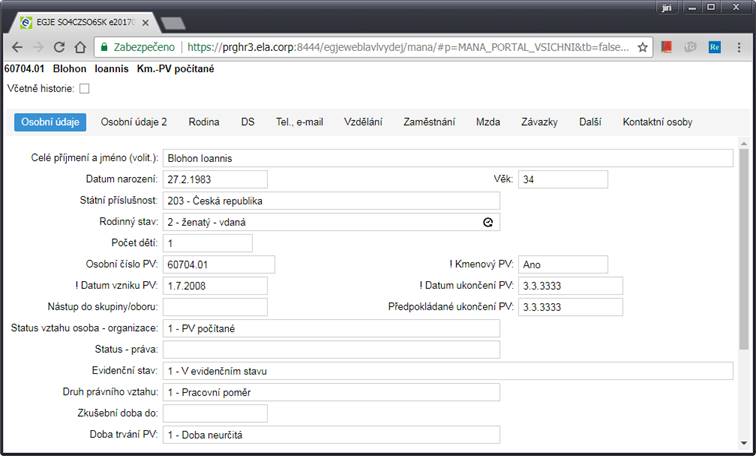
This interface is designed for integration into various intranets. The application provides a portlet here, meaning in EGJE terms, a form or report. However, it is not surrounded by the top or bottom application bars, and often the display is fixed to a single element (typically a person/PV). The form/report display is derived from the HR Portal design.
It is possible to call functionalities such as Pkz01, Vyp11, etc. Typically, this can be used to display payslips on the intranet, avoiding the existence of PDF payslip files directly in the intranet application.
The condition is SSO authentication (i.e., taking authentication from the operating system without requiring a username and password). For interactive authentication, this would be quite inconvenient for the user.
The implementation is such that additional parameters are added when calling EGJEWEB2:
&tb=false – displays without the top and bottom bars of the EGJE HR Portal.
&ns=fixed – displays without a navigation list, with a fixed parameter provided in the navigation (typically oscpv).
These parameters are usable for the command line of the HR Portal.
Example: .../mana/#p=SPR_MAXWP&form=Pkz01&tab=OsobaPanel&oscpv=109.02&tb=false&ns=fixed
3.7 Email server connection configuration
form Adm21 / Communication parameters
Parameters "Send mail" are used in widely in application.
"Receive mail" parameters are used on in Applicants module only.
Under Adm21 / Communication parameters / Sending Mail are three parameters that will allow TLS connections to the email server and authenticate EGJE as the email server user:
Connection Security:
- unfilled - ordinary unsecured SMTP connection,
- SSL / TLS - secured connection, you need a user and password
(Usually used with port 465)
- STARTTLS - way to secure existing unsecured connection
(Port 25 resp. 587)
SMTP User: The user used to connect to the SMTP server
SMTP Password: password for the user
More about SSL / TLS, respectively. STARTTLS here
https://www.fastmail.com/help/technical/ssltlsstarttls.html
When working through the AS, there is a parameter in the Configurator called AS / Sending and Receiving Email. This parameter allows all email correspondence performed by the system to be managed via the application server.
Sending emails is also related to the Configurator parameter:
Do not check e-mail sender address
Setting whether to perform a formal validation of the sender's email address (usually the user's corporate email – Osb02)
EGJE sender of all email address (voluntary) - for outsourcing mainly
In some installations, there is a problem with sending emails with the domain of the customer's email server in another domain. The correct solution is to write this server to the whitelist and thus enable the sending.
If, for reasons of security at the customer's approval is not possible, the system now allows you on the organization level to replace the sender by filling into Adm21/Parameters mail / "EGJE sender e-mail address". Such emails pass through security. However, we note that such e-mails for example, between the manager and the employee and all the others are just and only sent by this sender. Thus loses clarity of communication and the possibility of direct reply in the email client.
So, if it is not necessary, we won't recommend filling this parameter
Mode for adding the actual sender to the subject of the email:
1 - Standard (add if the sender's address for all emails is filled in)
2 - Never add the actual sender
3 - Add only the surname and first name (i.e., without titles and without 'Od/From')
4 - Actual sender in the format Surname First name (OSCPV), i.e., without titles
While Modes 1-3 are designed for an unified sender, ie the previous parameter "EGJE sender of all email addresses", mode 4 is used to change the formatting of accompanying text in the sender in the mode where the real user is sender of the emails.
Mode 4 lets you get rid of titles in the sender. Some types of e-mail clients misread what title is, what name and what surname.
Having problems with sending email from EGJE (typically workflow errors like:
cz.elanor.eman.datasource.remoteCompute.MailinatorException: Chyba odesílání emailu ...
Caused by: javax.mail.MessagingException: Could not connect to SMTP host: .... Permission denied: connect),
you can set environment parameter -Djava.net.preferIPv4Stack=true (in bat or jnlp file)
4 Installation and dimensioning of parameters
Installation and consultations concerning HW and SW are provided by Elanor employee according to internal methodology.
Certain basic points of these procedures are listed in the end of this document in its attachments.
5 Database Management regime - Data schema Elanor EGJE
Database schema EGJE is fully managed by Elanor change management.
Changes in the schema EGJE are allowed only to the company Elanor. The company reserves the rights to their implementation. As scheme in Oracle we understand a db user with EGJE objects (scheme), in Microsoft SQL whole database.
Exceptions:
Customer is allowed in the db schema EGJE create tables / views in consultation with the implementation team Elanor, respectively helpdesk.
These tables may not begin with "ce".
Especially not allowed to create / modify objects that can affect the process of change management and performance / availability of the applications.
These include triggers and indexes over EGJE objects, and adding custom columns to the tables, views EGJE.
Changing the contents of the EGJE database is only allowed using EGJE, or using an interface developed in cooperation with the implementation team, respectively accepted by Elanor via helpdesk.
If a customer uses for db Oracle statistics collection different procedure than the standard one (installed by Adm51), customer shall send their contents to implementing team / helpdesk.
Customer runs the standard procedure of collecting statistics, when requested via helpdesk - in case of solving a performance problem. It may also be accompanied by a request for deletion of collected statistics.
If a customer needs to change their own interface object created (or partially created) by Elanor, notifies the customer implementing team / helpdesk, and sends the changes source code.
5.1 BLOB - Document storage
The storage of employee documents in the database (Opv31) is more and more popular. Many customers store different documents in db.
Use of Oracle databases, respectively MS SQL Server offers the possibility to save these documents to a different disk space than other common relational data.
We can offer you advisory services for this transfer. At Oracle, it's about using mechanisms to move them directly to your table space, datafile.
MS SQL Server is more complicated, it is possible to shut down db, move data, rebuild db tables and restore data.
In these variants, documents containing relational databases remain, consistency is guaranteed, and common backup mechanisms back up both (ie, relational data and documents).
As part of the racionalization and further development of EGJE, since version e202211 objects of the document/file type have been gradually moved from sub-tables to one common storage, which is the DB table CETDOK.
The transfer of documents/files only applies to newly added or edited records at the moment, previously added documents/files remain in the original tables (for now). The moved document/file is replaced by a link to the central repository where the document/file was moved. This relation is ensured by the connection table CETDOKVAZBA.
So, at the moment it is a hybrid document storage solution. Interfaces that are the part of maintenance have been prepared for this mechanism. In the case of interfaces managed by the client itself, it is necessary to adjust the connection to meet this hybrid solution. We are ready for solution consultation.
After the implementation the relation for all corresponding tables containing BLOB objects to the new storage, a summary transfer of the original subjects will take place. You will be informed of this in advance.
6 Application administration – update procedure
Generally, administration of EGJE consists of:
· Setting and modification of parameters by means of utility configurator_egje – see next chapter.
·
Installation of application update procedure (patch or release versions)
Procedure is defined in description attached to the version. Standard is the
SuperConfigurator installation. The internal content is usually to copy the
file eman.jar resp. egjelib.jar to relevant deployment folder on the web server
(for testing and real-use versions) or possibly on application server.
If EGJEWEB is used, also actualization of tomcat web application is required.
·
Database update procedure
Procedure requires running of the modification
script, which is part of the version (patch), by the EGJE application itself.
Action is executed on form Adm51 accessible to the system administrator. Script
must be run both for testing and real-use databases.
Note: It is possible to install all programs first, then run the script only on testing database, perform thorough testing and only after that perform the same procedures on real-use installation/database.
· Database statistics (only Oracle database – Adm51)
· Administration of users
6.1 Setting and modification of parameters by means of utility Configurator_egje
Utility configurator_egje (in windows as a batch called configurator_egje.bat) is located in the configuration folder of installation folder resp. administrator has it in EGJE installation (root folder).
It starts configuration program, which includes the following:
Language of the program can be set up using parameter EGJELANG inside the batch file
e.g. -DEGJELANG = en causes it to run in English.
Starts the configuration program with the following contents:
java -Xmx128M -DEGJELANG=en -cp ../EGJE/egjelib/eman.jar;../EGJE/egjelib/egjelib.jar cz.elanor.eman.sgui.configurator.Configurator ./config_egje.jar
exit
The prerequisite is the path to java program. In terms of OS Windows java.exe that standard Java JRE installation records in Windows \ System32 / SysWOW64 directory. Resp. you need to have in the Environment Variables / Path setting the path to the directory javaJRE \ bin respectively. javaJDK \ bin.
Triggered version of java you will find from the OS command line via command java -version
Each EGJE client installation template and each server (AS or EGJWEB2) has its own configuration file config_egje.jar and it is advisable to make separate batch file to each (or mapped them all to one SuperConfigurator).
6.1.1 Address EWS
We enter the path to the root folder of EWS distribution (EGJE Web Start).
Path shall be entered in the following form:
http(s)://...
e.g.: https://prghr1/egje_vzor
or in a form:
file:/...
e.g. file:/J:/egje_install_vzor/egje
We recommend to prefer http(s) format.
Java 11 no longer supports the JWS mechanism, it is replaced with the EWS created by Elanor. So, we recommend no using the connected function with JWS (which is for example in the bold square in the picture below).
The EWS mechanism is released as a standalone distribution, and its functionality is described in the document "EWS – Documentation.pdf" within the EWS distribution package and here in Appendix B.

Note: Data file config_egje.jar but remains a major carrier of the configuration information. It is also used for AS, EGJEWeb and to run client using a batch file. Described alternative is not applicable for kerberos authentication (requiring transfer config file * .jar/krb5.conf).
Note: As an alternative to EWS the client can start using batch file from fast and reliable file server, see Appendix B. Here is also subscribed the difference between using Java 9 and 11.
Note 2: Installing EWS with built-in Java 11 no longer creates a Control Panel.
6.1.2 AS – application server
Note: All changes made must be stored by common button "Ulož" ("Save").
For configuration without application server use setting
"Mód: Klient bez AS" ("Mode: Client without AS")
For configuration with application server use setting
"Mód: Klient s AS" ("Mode: Client with AS")
For configuration of an application server use setting
"Mód: Aplikační server" ("Mode: Application server")
and the application server will process everything that may be forwarded to it.
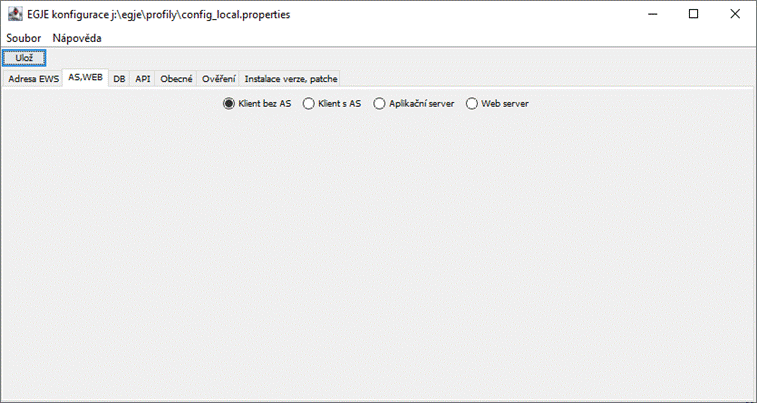
For mode: Client without AS no other information are necessary.
For EGJEWeb2 use choice Web server.
Mode Client without AS:
For mode Client with AS
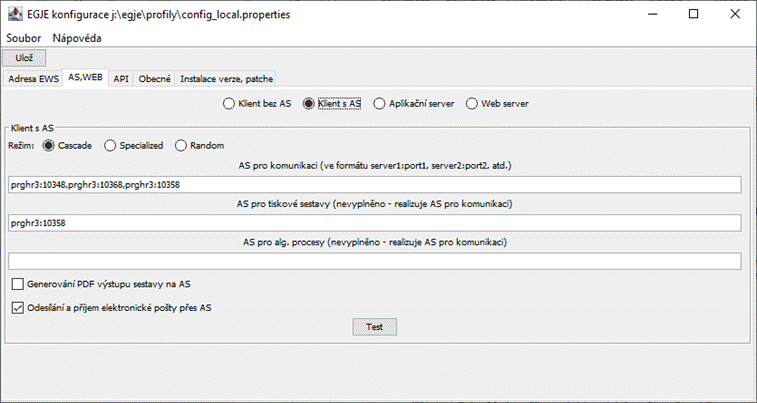
you should choose AS regime, when there is more AS (repeat couple server:port divided with comma)
- Cascade - client tries to connect to AS for communication in written order
These servers are also added to AS for reports and AS for alg.processes
- Specialized - client tries to connect to
AS for communication in written order.
These servers are also added to AS for reports and AS for alg.processes but in reverse order - Random - randomly selected AS for
communication from the listed
These servers are also added to AS for reports and AS for alg.processes
Note: for mswin_ntlm and mswin_kerberos authentications you ought to use host name instead of IP address for the server
AS for communication
basic AS to connect and work
AS for reports
request for report is sent to this server,
server collects data and depending on Generate PDF report output setting can also create the resulting PDF. We recommend this setting checked only for specialized server, for standard server for "all" we recommend PDF generation on client station (unchecked)
AS for alg. processes
if filled is used for:
· payroll calculation (Vyp01, Vyp02, Vyp51)
· monthly and yearly settlements (Vyp02, Cep02)
· imports (Vst05)
· GL exports (Uct02)
· "ELDP" export (Poj13, Poj14)
· SI export (Poj18, Poj19)
· checking apparatus (Kon*)
Generate PDF report output - discussed in AS for reports
Generate PDF report output - default not checked - on client side (recommended)
PDF generation is CPU and memory consuming action on AS
Email sending and receiving - on server by default
security consideration - station couldn't have access to smtp and pop3 server
Notice:
for a client with AS, it is not filled in on the following DB connection tab. Filling it ou tis a serious security flaw.
For mode Application server
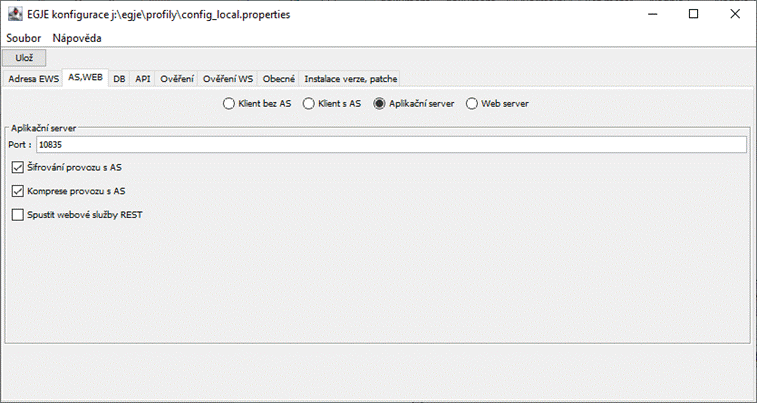
IP Port - port to client - server communication
When there is more AS - each should has his own IP Port
AS communication encryption
Encrypted by default from security reasons.
Default is TLS_DH_anon_WITH_AES_128_CBC_SHA. It offers sufficient protection.
Java also offers:
SSL_DH_anon_WITH_3DES_EDE_CBC_SHA
SSL_DH_anon_WITH_DES_CBC_SHA
TLS_DH_anon_WITH_AES_128_CBC_SHA
TLS_DH_anon_WITH_AES_128_CBC_SHA256
TLS_ECDH_anon_WITH_3DES_EDE_CBC_SHA
TLS_ECDH_anon_WITH_AES_128_CBC_SHA
You can change encryption via parameter
rmi_cipher_suite
in client and server config_local.properties
(resp. on AS via wrapper.conf
wrapper.app.parameter.n=-Crmi_cipher_suite=...)
Compression of communication with AS
Compressed by default
We recommend using the compression; it significantly reduces the volume of transmitted data without too burdening both sides
For mode Web server

There are 3 possible interfaces to access:
EGJEWEB2/HR Portal
REST web services
AS (from e201905 AS can run also in EGJEWEB)
Maximum duration of an inactive session (in seconds):
Sets the time after which an inactive session will be terminated. The default value is 15 minutes
6.1.3 DB – Connection to database
Note: All changes made must be stored by common button "Ulož" ("Save").
Not filled for regime AS client !
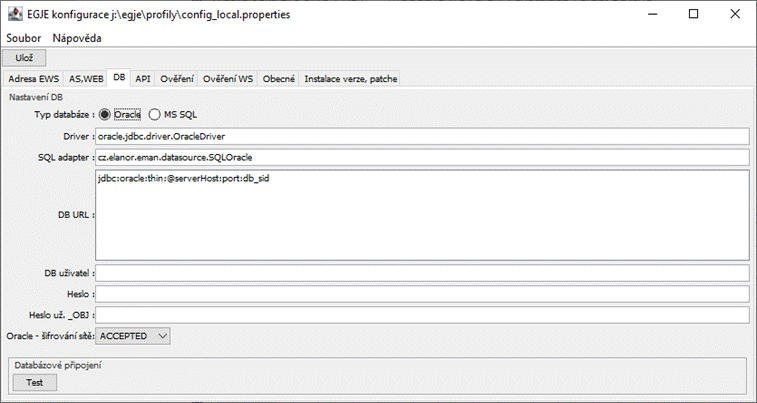
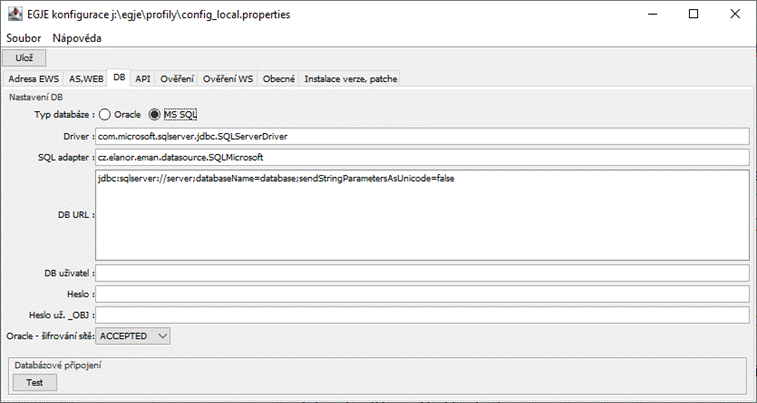
"Driver" – Class of JDBC driver
either (for Oracle db) oracle.jdbc.driver.OracleDriver
or (for MS SQL db) com.microsoft.sqlserver.jdbc.SQLServerDriver
"SQL adapter":
either (for Oracle db) cz.elanor.eman.datasource.SQLOracle
or (for MS SQL db) cz.elanor.eman.datasource.SQLMicrosoft
"DB URL"
either (for Oracle db) jdbc:oracle:thin:@serverHost :port : db_sid
or (for Oracle RAC db) jdbc:oracle:thin:@description z tnsnames.ora
e.g.: everything in a single line
jdbc:oracle:thin:@(DESCRIPTION =(ADDRESS = (PROTOCOL = TCP)(HOST = host)(PORT = port))(ADDRESS = PROTOCOL = TCP)(HOST = host2)(PORT = port2)) (LOAD_BALANCE = yes) (CONNECT_DATA =(SERVER = DEDICATED)(SERVICE_NAME = service_name)))
or (for MS SQL db) jdbc:sqlserver://server;databaseName=database;sendStringParametersAsUnicode=false
commonly:
jdbc:sqlserver://[serverName[\instanceName][:portNumber]][;property=value[;property=value]]
Note: for SQL Server is recommended to write to the end of the URL
;sendStringParametersAsUnicode= false
This will result in much faster processing of SQL commands with parameters.
This setting stops completely the possibility of unicode characters (in special fields)
"DB user" - db user name used for login to application (for Oracle, it is the one without _OBJ)
"Password" – user's db password
"User password _OBJ" – password of the objects' owner (i.e. at Oracle this is user with the _OBJ suffix) – user is used only during update procedures
"Oracle - network encryption"
The option allows you to set the mode for Oracle network traffic encryption. The default value is ACCEPTED.
Encryption is also similarly made available in the Oracle Listener
on the Oracle server.
See also http://download.oracle.com/docs/cd/B28359_01/java.111/b31224/clntsec.htm
EHAFHEIG
The oracleNetEnc entry can also be manually added to the config_local.properties configuration file.
Item description:
# oracle network encryption
# Values: none, ACCEPTED, REJECTED, REQUESTED, REQUIRED
oracleNetEnc = none
The supplier also does not solve the licensing of Oracle Advanced Security product.
For SQL Server, there are also property parameters to enforce encrypted communications.
Property encrypt = true; respectively without setting a server certificate together
; encrypt = true; trustServerCertificate = true
In this case, jdbc driver communicates via the SSL protocol, the second parameter means that the server certificate is not verified.
The application uses a connection pool. In case of Oracle, Oracle UCP is solution for the JDBC driver, in case of SQL Server EGJE uses the Apache Commons DBCP.
Also for Oracle, starting from e202606 it is possible to use the Apache Commons DBCP connection pool.
The configuration is done by setting:
SQLAdapter= cz.elanor.eman.datasource.SQLOracleDBCP
Its advantage is approximately 3× faster delivery of a database connection to the application. On the other hand, Oracle UCP is a very robust, although somewhat slower, solution.
One option to improve the performance of the standard Oracle UCP (i.e. SQLAdapter= cz.elanor.eman.datasource.SQLOracle) in terms of connection acquisition, without switching to DBCP, is the parameter:
OraclePoolServerMode - can have the following values:
CheckSelect - default; every database connection is validated by executing a database query before being handed out.
CheckInternal – validation is still performed, but only through a fast internal "ping" check.
NoCheck – no validation is performed by the connection pool; validation is handled solely by the JDBC driver.
For Oracle, it is possible to set the following values directly in the configuration file config_local.properties (or in the wrapper configuration file):
- oracle.min.pool.size – minimum pool size
- oracle.max.pool.size – maximum pool size
- oracle.inactive.connection.timeout – inactive connection timeout
If these values are not specified, default values will be used.
6.1.4 Obecné (General)
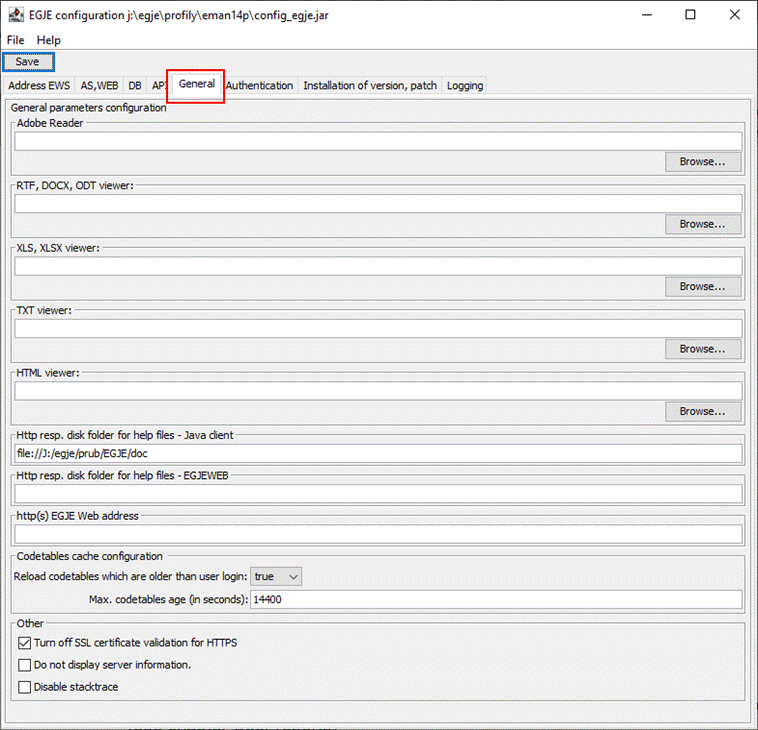
"Soubor uživatelských sestav" ("User reports file") – only for administrator who creates user reports.
(see chapter User reports)
"Adobe Reader"
Default path to the PDF files viewer. It is pre-filled for the user but the user may change it in application.
RTF, XLS, TXT, HTML viewers - the same principle
"Http/file folder for help files" ("Http/file folder for help files")
link to the system help files (mapped drive or http address; http is recommended)
"http(s) address EGJE Web" ("http(s) EGJE Web address")
Used for generated emails as a link to the application in old EGJE Web MAZM client
In standard client and EGJE Web replaced with Adm21 / Config.param./ "http(s) EGJE Web address" item.
Configuration of codetable caching Configuration is important for AS respectively EGJEWEB (2)
Reload codetables which are older than user login: ("cache_cis_od_prihlas")
false - use old data read - default fast mode
true - only use data that was loaded from the time the user logged on (which may result in a slower application start from the perspective of the user, but again the certainty that all the codetables are current)
smart - a special mode detecting data changes. It brings mainly reduction the volume of data transmitted, as it always asks there is any change in results of the db query for the codetable, and reloads data conditionally. Technically, it uses Oracle functions ORA_HASH and MSS function CHECKSUM_AGG.
Max. age of codetable (seconds): 14 400 implicitly i.e. 4 hours.
Section other
Turn off SSL certificate validation for HTTPS
The item is useful for example if the company proxy server decrypts the SSL connection and re-encrypts it with a certificate issued by an internal certification authority. It has no effect when running fat EGJE client through Java Web Start.
Stack trace turn off
This option disables stack trace generation. If the customer requires turn off stack trace, for security reasons, because the stack trace may contain information about system internal paths or for example, paths to servers, etc., it is possible to check this option (in checkbox) and generation of stack trace to console will be moved out. However, stack trace is used to identify possible system errors, it contains information about system settings that are needed to detect internal errors.
Therefore, if this option was used, we highly recommend that you also check the option "Send client logs to AS" on the "Logging" tab.
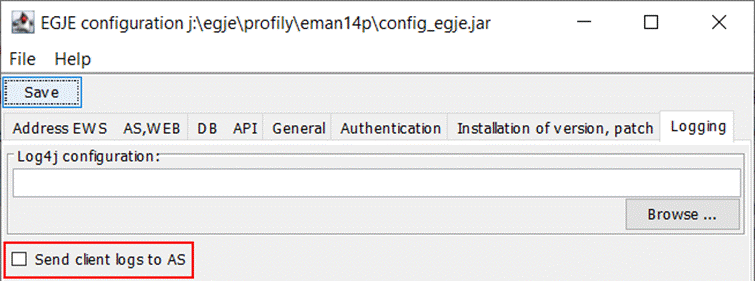
In case of an error, at least the stack trace logs stored on the application server will be available. If this option will be not checked, all stack trace logs will be lost and cannot be used to detect and identify errors in system.
6.1.5 Authentication
A detailed description of individual authentication types is provided in the Aut_uzdoc documentation.
6.1.6 Installation attributes

Directories are used by installation program SuperConfigurator. It is used to control deployment of EGJE patch to the deployment destination.
Folder with web start template
Full path to
webstart folder - folder where is also "egjelib" subfolder.
Standard installation - folder has name EGJE.
EGJEWEB2 WAR file
Full path to war file with EGJEWeb2 (webapps tomcat folder)
Installation consists of
Configuration - from former war file are taken from web.xml values of parameters
<param-name>config_jar</param-name>
and configured file is copied instead of the current one
Application includes also HR portal user interface for employees and managers.
Installation to Tomat 10:
For YES selection during creating war, the war is used for Tomcat 10. Viz Appendix C1.
Type of installation:
Possible values: unfilled = Production / Test / Development
The Test and Development Environment is then indicated in standard and web client as well.
For the web client, the application icon will also change.
For standard client with AS you are to configure the value in AS configuration, not the client one.
After setup, the AS (EGJEWEB2) must be restarted
6.1.7 Logging

Application logging can be set using Log4j here.
Log4j configuration:
The address of the external Log4j configuration file can be placed here. If not set, the default EGJE setting will be used.
More you can see in Příloha E. Logování - AS, EGJEWEB2
Sending the clients logs on AS:
When checked all events logged using log4j in the client’s part of the application are sent to the AS. It is important to set only for the Java client connecting to the AS.
6.1.8 Proxy

On this tab, you can configure the proxy for HTTP and HTTPS. If authentication is required, you can also fill in the username and password for the proxy. This configuration takes precedence over the parameters set during application startup (e.g., in .bat files, Tomcat startup settings, etc.)
6.2 Settings and changing parameters using the utility „MultiConfigurator“
This utility will allow the selection of multiple configs at once and a class is created for it to run with a „*.bat file.
Notice: The old functionality of configurators remains. It is still possible to run the configurator over one file and edit only this file.
Pattern for run::
start java -Xmx512M -ea -Dlog4j.configuration=log4j.eman.properties - Djdk.jar.maxSignatureFileSize=16000000 -cp /egje/vzor/EGJE/egjelib/eman.jar;/egje/vzor/EGJE/egjelib/egjelib.jar cz.elanor.eman.sgui.configurator.MultiConfigurator %1exit
Adding the krb5.conf
If after first parameter %1 is added second one %2, containing the path to krb5.conf to configure Kerberos authentication, then this configuration parameter is automatically add into all jar files.
After starting, a table will appear with a list of configs from the folder from which the bat file was started. The files will be loaded according to the mask of config_egje*.jar. The table will allow the selection of multiple configs at once.
There will be buttons:
· Mark all – marks all records in the table
· Unmark – unmarks records in the table
· Add – display a dialog:
o Name: text editor – chosing a file name
o Type: combo box for chosing the type of the file with values:
§ C - Client without AS
§ SC - Client with AS
§ S - Aplication server
§ WS - Web server
o The buttton “Add” – creates a new file with the chosen name and for the given type
§ the file is created and immediately saved on disk
§ krb5.conf is inserted into the new file
· Remove – the dialog “The selected configuration files will be deleted from the disk. This action is non-refundable“ Do you want to continue? Yes/No“ will be displayed. After agreement the file will be deleted from the table and from the disk.
· Generate a set – creates a config set, for testing configs will set r_typ_inst=T
o config_egje_as - S
o config_egje_cl - C
o config_egje_web - WS
o config_egjetest_as - S
o config_egjetest_cl - C
o config_egjetest_web - WS
· Edit settings
o If only one config file is selected, open the standard configurator.
o All selected configs are checked to see if the data stored in multiple configs match ( (e.g.. DB settings for AS and WEB), there are checked the dates, which are saved to multiple config files see “Configurator tabs”.
§ If they don’t match
· write in the log which items are different in which files and do not continue
§ if they match
· open the standard configurator with the ability to edit all files at once
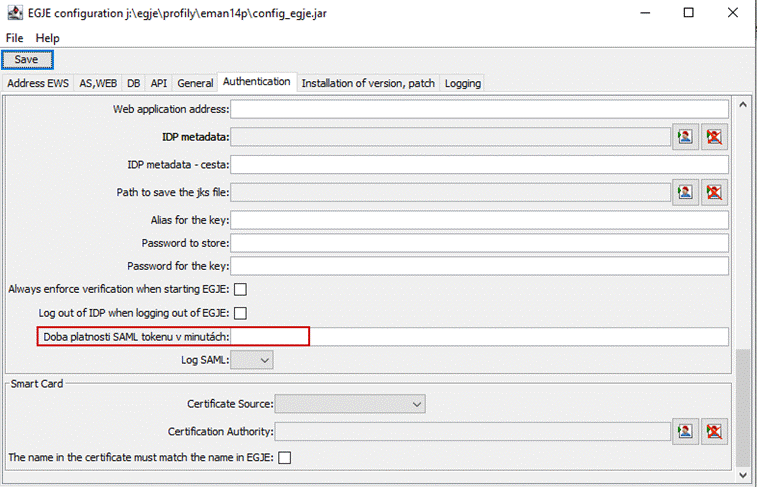
· In the "Verification" tab of the Configurator, a parameter for setting the validity of the SAML token has been added. The field is named "SAML token validity period in minutes:". The validity period of the parameter (maxAuthenticationAge) can be set in this field. If no value is filled in, the default setting is 7 days (10,080 minutes). See image.

6.3 Adm51 – Database update procedure
Tab "Verze databáze" ("Database version") shows information on current structure and content of the EGJE database. The information includes:
- version code
- last mandatory patch
- non-mandatory patch(es) (may be multiple)
Tab "Změna Db" ("DB change") includes button " Provedení změny Db / Instalace uživatelské sestavy" ("Make change in Db / install user report")
This is followed by script selection and right after that (provided the current version check has been performed successfully) the script is executed. Protocol from making action is saved continuously in the user's working folder (identical as for saving print reports), i.e. %HOME_DIR%\Dokumenty\Eman\output under the same name as the script and with extension "html". The file is opened automatically in your default browser after completion of installation.
For installations with AS, before you run the script, we recommend to inform the users. There is a button "Send a request to logout to logged users" to do it.
Information is transmitted through the database to all clients; each client checks this information every 5 minutes. Those users who are connected through the same AS or EGJEWEB, through which the administrator presses the button, receives information immediately and their lists in the protocol. Other users connected via other server aren't in protocol; the system does not send feedback.
After installing user reports that changes the repository, the administrator has a button called "Reload repository on all AS / EGJEWEB (2)" to reflect the change to other servers EGJE.
However, even if it does not, the EGJE servers have periodically (interval of 5 minutes) check whether a change occurred in the repository, and if so, they reload it.
If the user has the fLicLimitAdmin object right set, the Import license key option is available. This option is used by selected clients who have the option to import a license key to expand their purchased services, or to expand with new paid services. Information about imported keys and areas is displayed on the Adm73 form.
Tab "Změnový log" ("Update log")
shows information about all update procedures performed in the database. The finest unit here is an update procedure block.
Tab "Konfigurace klienta" ("Client configuration")
has meaning only for administrator startup directly on server by egje.bat. The button "Konfigurační formulář" ("Configuration form") then opens the same configuration window as the utility configurator_egje described in previous chapter.
Tab "Oracle statistiky" ("Oracle statistics")
has meaning only and exclusively for installation over Oracle database. For correct function of commands for operation with the database it is absolutely vital to update database statistics on regular basis. Otherwise some parts of the application will become gradually and unevenly delayed. We recommend automate this action using Oracle job. This may be created directly from this form. Fill in item "Hodina" ("Hour") (e.g. 23 => eleven in the evening; 0 – at midnight) and then press button "Vytvořit/Obnovit job na aktualizaci statistik" ("Create/Renew database update job"). If job is created successfully, buttons "Spustit job" (Run job") and "Zrušit job" ("Cancel job") are also active from this moment on.
Job duration depends on the database volume and the server's performance. It may vary from minutes to tens of minutes.
Button "Rebuild/přesun indexů" ("Rebuild/move indexes") calls alter index rebuild to all indexes. You can also choose another tablespace to move indexes. It can faster the database on some configurations. This functionality is designed for administrators of small organizations. Qualified administrators of larger installations should prefer Oracle tools.
Tab "MS SQL statistiky" (MS SQL statistics")
has sense only for MS SQL installations.
It contents the list of indexes with information about their fragmentation and last statistics update.
Button "Rebuild indexů, aktualizace statistik" ("Rebuild indexes, update statistics") calls:
· alter index rebuild - onto all EGJE indexes
· update statistics onto all EGJE tables
This functionality is designed for administrators of small organizations. Qualified administrators of larger installations should prefer MS SQL tools.
Tab Správa AS/klienta („AS/client administration“)
for installations with application server this tab offers information about connected users, for installations without AS only user connections, except tab Database locks summarizing locks over whole system. See more about locks in Attachment M. Basic description of databases’s locks.
For Oracle is also available the Tab Who is blocking whom. The content helps to discover the locks originator. Administrator can kill running tasks (with AS also connections).
This termination is on side of java, not on the database side (database connection used by EGJE hasn’t required db permissions).
The last subtab is "DB connection". It is intended for customers who use java client without AS. All other clients share db connections, so the data here has a slightly different, not so useful, meaning.
For the EGJE WEB server, there is a "Web" tab containing a button to reload metadata for SAML authentication. This tab is only visible for the WEB configuration when SAML authentication is set up.
Tab Security
After making changes on this tab, you need to restart the AS respectively WEB EGJE server.
On the "Security" tab, you can:
• Write the authentication that is the only one allowed (especially for java client without an AS)
• SuperConfigurator security against current db
o The ability to make a change script
o Enable export of codetables
o List of IP addresses from which SuperConfigurator is allowed to run
• "Try to reconnect to the application server"
The parameter specifies whether the AS client should attempt to reconnect in the case of a connection failure. If you set No here, the client does not do so and therefore does not have a reason to remember the password. If you set Yes, the client remembers the password for this purpose, but remembers it as an encrypted by symmetric algorithm.
The password must also remember the client if it is to work with multiple ASs.
• Session expiration
Items
Std.klient - session expires in [min]:
EGJEWEB(2) - session expires in [min]:
For std. (Java) client, for technical reasons, the user activity is monitored throughout the operating system, not just in the EGJE application.
When "Std.klient - session expires after [min]:" is not filled in, the expiration of the standard client does not occur.
Expiration of the standard client, which is not a web application, occurs by terminating the client's execution - the application will disappear (note - it may be considered a punishment of smokers). So, think well if you set it up for a standard client, a mandatory way (internal policy forced) - locking the screen by the operating system - is a better way.
When the entry "EGJEWEB(2) - the session expires in [min]:" is not filled, the default behavior is as follows:
The web application (including HR Portal) - expiration is given by the tomcat setting, ie by default 10 minutes.
For all clients, when the report or calculation is running, the application waits for the result and the automatic logout is paused. Exit is also blocked by the open form Adm51, which communicates with the server constantly.
The expiration time can also be extended for a certain amount of time by receiving EGJE internal mail.
Servers retrieve the data from db every 5 minutes. The client (java or browser) retrieves the data from the server at the time of login.
Tab Org. IT par.
It contains a master-detail of the organizations specified in Adm21 and selects from Adm21 and Ftp02 parameters that are more relevant to IT administrators than to the application administrator. This is an alternative location and editing.
Tab Message to all
The administrator can enter a text message for the period between two dates, which will be displayed to users for all EGJE clients after login.
These messages are above the others.
In the HR portal, messages are in the right column Messages and links.
The other interfaces display the Message using the internal form Mail.
The data remains common and messages aren't copied to each user. So user doesn't delete it. After the date expires, the message disappears.
Tab System shutdown
It is basically a similar thing, but the times are also defined here, and it is possible but not necessary to specify the server and port, so you can specify a particular AS that will be deactivated by the administrator.
From a certain time when signing in, it notifies when the shutdown will be, and when the shutdown already is and the system is still running, it will not allow the user to login or, Alerts subscribers, except administrators (Adm51 rights) and it ends their sessions as they are at expiration.
The check takes place every 5 minutes and concerns both the web and the java client (with AS or without).
Tab Link to all
Allow an administrator to add into EGJE an http(s) link.
The HR Portal displays it at the top of the Messages and links column.
Other interfaces will create links in the menu.
The link may also be temporary, defined by a valid ‘from’ and ‘to’ date.”.
Links can be configured using the Display Type setting:
· Value 0 (default) – displays the created link in both the Web client and the thick client.
· Value 1 – displays the link only in the Web client (Ref interface and HR Portal).
· Value 2 – displays the link only in the thick client.
. The links are opened according to browser settings, usually in a new tab.
Note: It is not EGJE's ambition to replace the corporate intranet, especially when using interactive authentication, links are somewhat "around the corner".
Tab E(W)SOI
Customers using the Egje extension ESOI (Egje Standard Output Interface) now have the option to set the parameters of this interface. The new version of the interface, which will be released in version e202309, will be able to use these settings.
These are choices:
Language for titles
Status for payroll closing
For the upcoming EWSOI interface there is also an option (no change option):
Web interface output.
6.4 Utilities
Utilities Anonymization and XML data validating report Ela01vxc are described only in Czech and Slovak version.
6.5 Use of the SuperConfigurator utility to create a report over multiple DBs for the possibility of comparing and finding items in different DBs
The super configurator now includes the option to export, for example, SLM, Roles, item lists etc. from marked DB’s.
In the upper list, the DB from which the data is to be exported is selected with the help of Ctrl + mouse click, and the items that need to be exported are selected on the "Export of code books" and "Export of code books II" tabs. Then, after pressing the "Export XLSX" button, a file in XLSX format is created, but it is not used for subsequent import, but only for comparing data in selected DB’s. It can be used, for example, to compare whether a given Role with the number 501 occurs in selected DBs, which will give the user information about, for example, the free numbers for Roles in other DB’s.
Pozn.: SuperConfigurator is described in chapter 11.
7 Administration of application users
7.1 Creating a user – brief summary
Typical procedure:
Person is not in employee records (yet)
Adm01p - we create a person with user relation (status 21 User - system records), we assign the Profile (+ language, organization) and the Logname for Authentication.
Person is in employee records as an employee
Employee/Manager
in Adm10 we assign Profile (+language, organization) and the Logname for Authentication
Person officer
we can do the same as for Employee/Manager
or in Adm01p we create to this person user relation (status 21 User - system records), we assign the Profile (+ language, organization) and the Logname for Authentication.
We often assign more profiles to managers and officers, but Logname is usually only one.
Note: Typical Logname
Authentication Windows NT
WinDomain\user e.g. MOTOR\jigecz
Authentication kerberos, LDAP
user@domain e.g. jigecz@motor.cz
7.2 Rights for objects and lines, roles and profiles
7.2.1 Definitions and basic questions
Definition of access rights in EGJE, their application and usage:
Admnn – administrator's forms – opened either from menu "Správa systému" ("System administration") or from the EGJE command line
"Uživatel" ("User")
– a person with PV with status 21 "Systémová
evidence" ("System records") (shown and editable on form Adm11)
(PV means legal relationship person-organization)
"Uživatel přiřazený na profil" ("User assigned to profile") – link between user and access right profile – (Adm01)
"Autentizace uživatele" ("User authentication") – generally, this is verification whether the user is who he/she
claims to be; in EGJE, this information is either taken over form login to
operation system (Windows NT) or it is executed against Kerberos server (using
mechanism embedded in java JRE);
("Adm01 – Přihlášení autentizace" / "Adm01 – Authetication
login" and also Adm01p)
"Profil přístupových práv" ("Access rights
profile") – connection of access rights to objects
and access rights to rows. Sometimes we also use the term "abstract
user". A specific person may have multiple access rights profiles
assigned, acting within the system in various user roles (for instance employee
and manager or payroll clerk and head of payroll department) (Adm02).
While access rights to rows are defined directly for a profile, rights for
objects are assigned indirectly by means of roles (Adm03).
"Role přístupových práv" ("Access rights roles") – a set of assigned access rights to individual objects of the system. We discern roles administered by Elanor (1-499) and user-administered roles (500-999) (Adm03)
"Přístupová práva k objektům" (Access rights to objects") – basic building unit of access rights is an object. Typical objects are "Formulář" ("Form"), "Proces" ("Process"), "Sestava" ("Report"), "Export" ("Export"), "Položka menu" ("Menu item"). From the access rights point of view, objects Form and Process may be further subdivided to finer objects – "záložka" ("bookmark"), "datový zdroj" ("data source"), "položka" ("item"). (Adm04)
"Hodnoty přiřazení práv k objektu" ("Values of access rights assigned to objects") – a set of permitted values of access rights depends on type of object, to which they are to be assigned. Assignment is always applied to a role.
While to forms we usually may assign rights -2 - Withdrawal of read and write permission / -1 - Withdrawal of write permission / 0-No rights / 1-Read / 2-Write, for reports, menu items and processes we usually use a pair -1 - Withdrawal / 0-Execution disabled / 1-Execution enabled.
Special values are negative values, which limit the right, even though the right is assigned to a profile by other role for instance. Restriction then may be total (-2) or partial (rights reduced to read only, i.e. -1). (Adm03)
"Konfigurace použití objektů přístupových práv" ("Configuration of using the access rights objects") – as EGJE is a type project, it includes number of objects, which a specific customer will never need to use. To ensure that such object will not obstruct assignment of rights to specific roles and in order to eliminate errors in assignments, it is possible to define objects never to be used in form Adm04 at tab "Konfigurace použití" ("Configuration of use"). (Adm04)
"Přístupová práva k řádkům" ("Access rights to rows") – as organizations are often divided by areas or hierarchy, such divisions need to be reflected in access rights definition and assignment. In other words, a user may have right for certain object but within it, he/she cannot access all data, only their part defined by his/her competencies within the organization.
Such divisions are defined by "Správní jednotka" ("Administration unit"), "Správní oddíl" ("Administration section"), assignment to "Struktury" ("Structures") (typically an organizational center or structure of payroll clerk), "Status PV" ("PV status"), "Status - práva" ("Status - rights") or "Příznak chráněné osoby (PV)" ("Protected person attribute (PV)"). In items AU/IU you can choose one or write the list (format e.g. 1,2,5-8,10). (Adm02)
Note: There is another rights element - Organization - for installation with more Adm21 Organizations. Organization is attached to assignment Person-Profile (Adm01, Adm01p, Adm10, Adm12). So, one profile can be used for more organizations.
Setting of access rights to rows
Described
options of limiting access rights to lines are very often used in combinations.
Typical examples:
User has accessible all persons within administration section – to be filled:
SJ to limit access rights
SO to limit access rights
PV evaluation method of structures account - "VSE-all"
User has accessible all persons within administration section, only "alive", i.e. counted employees – to be filled:
SJ to limit access rights
SO to limit access rights
PV evaluation method of structures account - "VSE-all"
PV account of allowed statuses - "1,2,3"
There is a new line on the form with the name: „Extension of restrictions and editing according to groups of ŘP:“, which allows using rolldown menu to extend options of the editation and group display restrictions as specified by the line rights for structures.
Basic questions
Can two users use the same profile?
Yes, they can. However, they must have the same object rights. As for the line rights, these must be the same as well or they must use "identical macro". Typically, their rights may be derived from the own user department, which is then different for each user and therefore eventually their access rights are different too.
How to name a profile conveniently?
Profile name should reflect a user's role (e.g. payroll clerk, manager) and basic definition of access rights to lines (e.g. MÚ1 SJ 1 or "My department"). Likewise, abbreviating this, the profile's code should be structured.
What is the relation between access rights to lines to data history?
Within the system, we differentiate between two basic repositories of data assignments to division of an organization – root assignment (typically Opv01) and assignment stored in accounted payroll (e.g. detail in Vyp01). Therefore, it only depends on nature of object subject to access rights. If the object draws from root data, access rights are evaluated as of the reference date and against assignments valid as of such date in a form currently available in database.
For object drawing
of accounted payrolls the situation is more complex. While forms use root
assignment, reports are little bit more complicated.
Relation of a report of accounted payrolls to access rights to lines may be as
follows:
§ Report evaluates rights to the very detail, i.e. it decides according to individual PV assignment to structures, SJ and SO at the moment of payroll calculation in given period (Rek02p, Rek05p, ...)
§ Report evaluates access rights to lines in detail but from root, i.e. current definition of assignment (Sra02, Sra03, Vyp09, ...)
§
Report evaluates access rights but only to the
level of assignment to SJ, SO while respecting protected persons. Priority with
this kind of report is its completeness. Subsequently, it is up to the administrator,
whether he/she will assign the rights to user who for instance does not have
rights for complete SJ report or not.
(Evs10, Evs11, Rek01, Rek02, Rek03, Rek04, Rek05, Rek06, ...)
§ Report does not evaluate access rights to lines, in other words, the report makes sense only complete or not at all.
Finally, we have to mention that the rights' definitions are not historically monitored (logged). Definition of line rights in a profile is therefore used as it is displayed in the form (Adm02, Adm01). Previous settings are not stored.
Access rights and reports
From the view of
access rights to objects the report is one object. The user either can or
cannot run it. If you can run, you see all report items. This is in contrast to
the forms, where a number of detailed form parts for object rights (tabs,
datasources, data fields) can be set on the level of the role (Adm03) or
configuration (Adm04) .
Access rights to rows are applied in reports. Most of these rights are rights
to Persons and Employments.
In some cases, however, the requirements for completeness of the report go
against the detailed rights usage requirement.
Some reports are thus realized in a way that they don't use row level rights at
all, or rights are reflected to th level of Internal unit (IU) or
Administration unit (AU) but not finer ( by structure ) . Typically, this
includes the recapitulation reports Rekxx . In Rek_uzdoc
is for each of them mentioned what rights mode is used.
Typical reports with emphasis on completeness are bank transfers Banxx broken
by batch.
Evaluation of access rights to the rows and the reference date
Access rights to the rows are evaluated at the reference date.
This date is limited to future. We have long held the rule upper limit is today's date. Since version e201401 we have changed the default value to today's date + 40 days.
You can change it with the parameter
Adm21 / configuration parameters / Emp. row rights evaluation future days upper limit.
Negative values are not accepted, maximum is 9999.
This applies to access to master data, the navigation lists (typically the navigation list of persons / employees), comboboxes respectively for data in reports from other areas than payroll (where logged codetables data are used for rights).
In practice,
this usually allows you to prepare data for next period using the set of data
what will be valid in the next period. Everything is based on the reference
date, that the user selects when logging, respectively he can change it inside
EGJE.
7.2.2 Setting access rights in application
A detailed description of the access rights settings in the application is provided in the Aut_uzdoc_en - Access_rights_title documentation.
7.2.3 Rights objects configuration
Previous chapter describes how to set rights for individual users. If however the administrator knows that the organization will not be using certain window, report of process at all, it is convenient to disable such objects by configuration. Object will thus disappear from the system at single click and will not "get in a way" in complicated forms for access rights assignment (Adm03).
Objects may be disabled in form Adm04 at tab "Konfigurace použití" ("Configuration of use") by item "Hodnota vyřazení" ("Disable value"). Here -1 and blank field means the same, 0 means completely disabled object from use. Values 1 and 2 then represent certain restriction of use: 1 object will always be available as read-only, 2 parts listed in lower part of the tab will be omitted. Again, cascade principle is applied here as described in assignment of rights to roles.
Items in the database or repository item EGJE marked as mandatory are now indicated with "!" displayed before the item title.
In Adm04 administrator can in the tab "Structure of the rights object" define other items as mandatory (column "Mandatory" = Yes). For other types than the value of the item is irrelevant. We recommend cautious switching duty!
In this way, an administrator can add some items obligation; however, mandatory status cannot be canceled for those items where it is set by "producer" at the database level.
7.2.4 Substituting user's profile
At the form Adm01 we set substitution by another user. Substitution takes place in the rights profile. Administrator enters substituting user profile, which is to substitute and select the user (item represented person). He adds dates also.
The substituting user then logged into the system will see one more line in a profiles. In the column Profile is the substituted user. If you select the profile the system sets the access rights as would be reported by the substituted user. However, all changes made during the substitution audit stamp of the logged is filled to the database.
Only exception from substitution is what is assigned as a structure
manager on Str01, Str02 forms. I.e. user doesn't in standard receive email
from this title. But in form Wflow user sees all the requests for approval.
Note: In many organizations, an email is forwarded to the substituted person by
the mail server.
If the substitution does user himself, he can do it using the form Adm15 - Employee substitution with the same manner. There is also the option to specify the mode "Send WFL e-mails to substitute:" which allow deputies also to receive e-mail messages (see Adm_uzdoc / Adm15). For the purpose of representing persons across different organizations (multi-organization environment), it is possible to enable the entry of a Represented Organization by activating configuration item 270 in Adm70.
This functionality is applicable in cases where a delegate represents a person from another organization. The field is informational only. The Organization field is automatically populated with the organization of the delegate. Therefore, the Represented Organization field can be filled in to clearly indicate which organization is being represented.
.
7.2.4.1 Setting the substitution profile
Profile for substitution is often other than the manager profile. It offers only any competencies.
In Adm02 administrator to manager profile (e.g. MANA) fills the
"Substituted by profile" item (paragraph Permissions to assign). If
not, profile is not offered to manager in Adm15.
In Adm15 manager sees profiles having the "Substituted by profile"
item filled and these profiles are also in codetable offered to manager.
If organization doesn't use different profiles for substitution of the manager, administrator fills in Adm02 to profile the same profile to "Substituted by profile" item also.
7.2.5 Limited admin
There are two types of Adm12, Adm01p users:
Full rights admin
has access rights to one of the forms Adm02, Adm03, Adm10.
In contrast with limited admin.
Limited admin:
• Profile Adm12, Adm01p combo doesn't contains profiles with access rights to one of the forms Adm02, Adm03, Adm10.
• Limited admin can't edit persons having one of these profiles or own person.
Limited admin can't assign login under which is user logged now. In Adm10p, Adm12 limited admin can't see own person
Shrnutí: Dílčí správce nechť má zápisová práva na Adm12, Adm01p, zatímco na další správcovské formuláře práv nechť má pouze čtecí nebo žádná práva (Adm01, Adm02, Adm03, Adm10).
Summary: Limited admin should have write acces to Adm12, Adm01p while to other admin forms should have only read-only or no rights (Adm01, Adm02, Adm03, Adm10).
7.2.6 Attachment – model of EGJE access rights

7.2.7 Special object rights objects
Most of access rights objects are named with the forms, reports, batch reports, processes or menu objects name. Besides these, however, there is also a group of special objects:
For the area of DOCH and Approval deflection, a part of special objects is described in Doch_dopl_uzdoc.
|
Object |
Description |
Meaning |
|
Adm11mazaniSpoc |
Permission to delete person calculated a year ago or before |
Generally, a user with write in Adm11 may delete person + employment, which has not yet entered into wages. When the user can also have this right, can erase a person whose most recent calculation period is a prelast year or older. |
|
Cep01emp |
Functionality employee |
Group objects for typed roles used in Cep01 functionality - workflow Travel orders (see also WflowAdmin) |
|
Cep01mana |
Functionality manager |
|
|
Cep01pokl |
Functionality Treasury Department |
|
|
Cep01ref |
Functionality referent |
|
|
Cep01jenObd |
User can enter the travel order only into period with attendance open |
Restriction for the Travel order input. |
|
Cep01zal0 |
Right enforces advance = 0 |
User with this right can cancel Travel Order only if advance = 0 |
|
CepTypVT |
Access to pay days for travel orders |
Access to travel orders pay days set (10-39) E.g. for reports with parameter pay day. See also VypTypVT |
|
|
|
|
|
Dan12email |
Access to send report Dan12 to employee email |
Access for other parameters on report Dan12 |
|
Dav01Admin |
Access to records of all users |
To overcome a time assignment of employee to the user inside the month |
|
Dav01Kopie |
Form Dav01 |
Access for button “Copy Inputs” on form Dav01/Inputs (Standard is this button invisible) |
|
Dav01Protokol |
Access to protocols of Time&attendance |
Right to special tab Dav01 / Protocols |
|
Dav01SadaZkrNazev |
Access to field :Dav01 Short-text of Structures Set |
Fill column Dav01, Structure Set,
Short-text (10) from the Name item. |
|
Dav01SmazatVse |
Access to delete all records |
Access to Delete all button - Dav01 / Inputs |
|
Dav01Vratit |
Access to function Dav01 Return to Dav01 user |
Special button on tab Dav01 / Inputs / Return to Dav01 user |
|
Dca02rezimAllSK |
Dca02 in mode Allsk |
Strict checks in form Dca02 - customer Allsk |
|
Dca02ViceOdp |
Dca02, more type of working time |
Within the Dca02 form, it allows an alternative name for the basic buttons for the start and end of the working time and display the next set of buttons for start and end times. It does not belong to any of the standard roles. |
|
Dcd01GenDDSLM |
To set WgCode is mandatory - during daily attendance generation |
Stricter rules for the tab Dcd01/Generate daily attendance |
|
Dcd01specfunc |
Special functions Dcd01 |
Permission to delete daily attendance and daily header |
|
Dcd01HromZmenaSlm |
Access to Mass change of WgCodes on Dcd01 |
Access to button "WgCode change" on Dcd01 / Transfer and closing / Mass change |
|
Dcd01RekDniUkol |
Dcd01, Days rekap, Task hours |
Task column on Recap. on Dcd01 |
|
Dcd01VzorDenOblib |
Dcd01, favorite sample days usage |
Allow favorite sample day usage |
|
Dcd01TypPrescas |
Dcd01, Overtime/holiday benefit type |
Allow dialog on Dcd01 to choose the Overtime/holiday benefit type |
|
Dcd01UzavriDen |
Closing the day for change |
Allow button Close and transfer, Setting of Daily header. |
|
Dcd21fppfSmazatVse |
Permission to delete all daily records of the Timesheet |
Used for accessing the [Delete all] and [Delete all for all Emp.in navigation list] to form Dcd21fppf. It is not in any standard role. |
|
Dcd27fppfSmazatDen |
Permission to delete all daily records of one day of the Timesheet - HQ |
Allow the button |
|
Dcd27fppfSmazatVse |
Permission to delete all daily records of the Timesheet - HQ |
Allow the buttons for Timesheets |
|
Dcd27fppfEditZkrNazev |
Dcd27fppf configuration |
Allow to edit column Short name |
|
Dcd51RekDniUkol |
Dcd51, Days rekap, Task hours |
Show column Task on Dcd51 |
|
DcgAdmin |
Task payroll admin |
Allow admin functions in task payroll area. It also closes forms to the level 2 |
|
DcgAdminEla |
Task admin special functions |
For ELANOR consulant only |
|
Dcg01Parametry |
Access to Dcd / Parameters tab |
Allows also edit there. |
|
Dcg02SmazatVse |
Report mass deletion |
Allow mass deletion of task reports in nav. list |
|
Dcm01expert |
Dcm01 expert |
Recent setting for wage code list hardcoded in Dcm01 (user is allowed to insert) Replaced via Adm06 wagecode group rights. Other functionality: to see also data from Evidence (pd_zdroj=21) at Dca02, Dcm01 / tab Inputs detail. |
|
Dcm01specfunc |
Special functions Dcm01 |
Permission to delete monthly inputs and monthly header |
|
Dcm01VstupySouhrnPrvni |
Dcm01 – Display tab “Imputs” - first |
Display tab “Imputs” on first place of the form. |
|
Dcp01EditRezervaNeprit |
Editing a Sheduled Leave Reserve |
Edit for Scheduled Leave Reserve in Dcp01, Dcp02, Dov16 |
|
Dcs02objuzav |
Meal ticket order after Dcs closure |
User can run Dcs closure. |
|
Dcs02ProtokolVse |
Dcs02, show protocol of all users |
Form Dcs02/Protocols, when set to " Permission to execute", displays the current user
diet logs from all users for the current period. |
|
Dcs02VyhodnoceniPrvni |
Form Dcs02 |
Permission allows for the profile / user, when opening the Dcs02 form, to display the Evaluation tab first - current |
|
Dcs02ZalTypNaroku |
Form Dcs02 |
Permission to see tab “Typ of entitlement” |
|
Dcs03specfunc |
Special functions Dcs03 |
Permission to delete the evaluation of meals |
|
Dcu06ctiDOCH |
Dcu01 records from daily monthly inputs only for reading |
User with this access right cannot edit records from Adm06 groups 22, 23, 24, 25, 26. User also can't close/open attendance. |
|
Dcu06_inspektor |
Dcu06 - dialog items extension (WgCode group, Origin, Status) |
This right offer to see the group number from the Adm06 rights group in the dialog button text. And columns WgCode group, Source, Editation status while editing. The right is not a part of any standard role. |
|
Dcu06pocitaj |
Dcu06 - Permission of the hour calculation daily/monthly record |
Standard mode (without this right) - Dcu06 after save of the record doesn't run calculation. Data are calculated usually via nightly calculation. Slower the response! It is not part of any standard role. |
|
Dcu06editPlSmen |
Dcu06 - is allowed to edit planned shift |
User is allowed to edit planned shift on Dcu06. It is not included in any standard role. |
|
Dcu06nesmiUzavrit |
Dcu06 - User may not Close the record |
For standard inputs (without approval) user with this right is not able to press Open / Close buttons |
|
Dcu06nezobrazitZdroje |
Dcu06 - Without button [Restrict data] |
It is not included in any standard role. |
|
Dcu06nezobrazitFunkce |
Dcu06 - Without button [Function and Selections] |
It is not included in any standard role. |
|
Dcu06SmazatVse |
Permission to delete all records of Dcu06 |
Used for accessing the [Delete month] button in form Dcu06. It is not part of any standard role. |
|
Dcu06schvalit |
Accessibility of the [Approve], [Disapprove] |
Use the [Approve] and [Disapprove] buttons to access the Dcu06 form. When it was created, it was not embedded in any of the standard roles. |
|
Dcu06ZobrazProtokol |
Dcu06, Show protocol |
When the Launch option is enabled, use the Protocol icon on the Dcu06 form. The right is not automatically assigned to any of the standard roles. |
|
Dcu06HromZmenaSlm |
Access to Mass changes of WgCodes in Dcu06 |
Access the [WgCode change] button in the Functions and Selections menu to run the mass overtime WgCode change function on Dcu06. The right is not automatically assigned to any of the standard roles. |
|
Dcu06ZakazUzavrit |
User right to buttons : Close / Open |
With the "May start" setting, the user is not allowed to use the Close / Open buttons on the Dcu06 form. The right is not automatically assigned to any of the standard roles. |
|
Dov056emp |
Vacation approval - Functionality employee |
Group objects for typed roles used in vacation approval functionality - workflow Vacation approval (see also WflowAdmin) |
|
Dov056koor |
Vacation approval - Functionality coordinator |
|
|
Dov056ved |
Vacation approval - Functionality manager |
|
|
Dov056ved1 |
Vacation approval - Functionality manager 1 |
|
|
Dov056KalJenPlusDov |
Request for vacation with positive balance only (IA 21) |
It will not allow the user to send a request if the currently evaluated claim is exceeded (Dov_uzdoc / Dov05) |
|
Dov056KalJenPlusPVol |
Request for day off positive balance only (IA 26,5151) |
ditto |
|
Dov056KalJenPlusPlan |
Request plan for time off/vacation with positive balance only (IA 21,26,5151) |
ditto |
|
Dov056KalNV |
Request for compensatory time off, checking for balance |
Activation of NV drawdown control on
the current NV balance, when saving / sending the approved SLM from the form
Dov05 / Dov06 / Dcu06. The deviation is saved / sent even if the condition is
not met, after the message is displayed. |
|
Dov056KalNVJenPlus |
Request for compensatory time off, checking only for positive balance |
Activation of NV drawdown control on
the current NV balance, when saving / sending the approved SLM from the form
Dov05 / Dov06 / Dcu06. The deviation is saved / sent even if the condition is
not met, after the message is displayed. |
|
Epr01Admin |
Access to records of all users |
Write access to records of all users |
|
Epr01Insp |
Read access to records of all users |
Read access to records of all users (own eProposals remain for Write) |
|
Epr01EprPosledniho |
Access to records where user approves to status 30 |
Allow to "Transfer into the root personal data" for seeable eProposal for user approving the last step, even if he hasn't Epr01Admin |
|
Epr01Protected |
Read access to records of all users |
Allow to fill "Protected workflow" item for new eProposal. |
|
Epr01Kopie |
Access to Copy this eProposal |
Enables the "Copy this eProposal" functionality |
|
fDokPrivat |
Access to all documents of Employment |
Access to documents not set as public. |
|
fEditDochUzavDoch |
Editing attendance in period closed for attendance (status 3) |
Self-explaining |
|
fEditDochUzavMzdy |
Editing attendance in period closed for payroll (status 9) |
Self-explaining |
|
fexportXLS |
Export to Excel |
Enabling interactive feature Export to Excel spreadsheet (in local menu). |
|
fGenKal |
Generation of calendars |
Permission to generate all calendars via Vyp02
|
|
fHodOdemkni |
Unlock assessment |
Permission to Unlock assessment on Hod01 |
|
fHodZamkni |
Lock assessment |
Permission to Lock assessment on Hod01 |
|
fKopCis |
Monthly copy of wage code tables and structures |
Permission to run Monthly copy of wage code tables and structures on Vyp02 |
|
fKopCisSlm |
Monthly wage codes copy |
Permission to run Monthly copy of wage code tables on Vyp02 |
|
fKopCisStr |
Monthly structure copy |
Permission to run Monthly copy of structures on Vyp02 |
|
fKopCisMulti |
Monthly copy of code tables - permission for multiorg. |
Permits: Run Monthly copy of code tables to multiorganizational db user limited by organization respectively Run it at one-organizational multiAU db to user limited by AU. |
|
fKopPV |
Emp. monthly copy on pay day |
Permission to run Emp. monthly copy on pay day on Vyp02 |
|
fLang_cs, fLang_sk, fLang_en |
User interface language |
Language switch icon: The user is offered languages that are assigned by the profile assignment, and possibly the basic languages ("en", "en", "en") enabled by the fLang * object. If there are more than one, there is an icon for switching. |
|
fonlyHTML |
Only HTML report formats are available (web in tab) |
User with this permission can choose only HTML report format. Valid only when report supports HTML format. Report is displayed in tab regardless of the setting in Adm21 |
|
fonlyPDFplug |
Only PDF report formats are available (web in tab via plugin) |
User with this permission can choose only PDF report format. Valid only when report supports PDF format. Report is displayed in tab regardless of the setting in Adm21 |
|
fPlanSmenZobrazNeprit |
Shift plan, view absences |
Absence display mode from attendance records in Dcp03. not assigned to any of the standard roles |
|
fPvDochHist |
Show in navigation list Attendance in history all employees accessible now. |
User with this permission can see more people in history, also employees belonging in history out of his scope. |
|
fReaPrijHrom |
Onboarding - mass |
Button Rea01 / Onboarding HR / Onboarding of all applicants from list |
|
fReaPrijInd |
Onboarding - individual |
Button Rea01 / Onboarding HR / Onboarding |
|
fSchvalSLMPoznamka |
Obligation to fill field Note when sending request |
Obligation to fill in the WFL note when sending the SLM from the eligibility Slm02.DOCH03.H-Offic from the form Dov05, Dov06 or Dcu06. |
|
FtpAdmin |
FIle exchange - admin |
User with this permission doesn't need to be assigned in Ftp02 to activities with declared folders (reading, downloading, deleting) |
|
fUrepImpDelAll |
Permission to delete user imports of other users |
Object is used for user import reports. It allows delete import batches made by concrete report by other users. |
|
fUzavMes |
Monthly settlement - calculation/cancelling |
Permission to run Monthly settlement on Vyp02 |
|
fUzavRoc |
Annual settlement - calculation/cancelling |
Permission to run Annual settlement on Vyp02 |
|
fUziAdmin |
Administration of user-defined reports |
Permission to interactively create user reports (local menu on
selected menu objects in left navigation menu - std. client)
|
|
fUziCrea |
Creation of user-defined reports |
Permission to interactively create user reports (local menu on
selected menu objects in left navigation menu - std. client) |
|
fVsechnaRazitka |
In payroll reports offer all stamps |
It allows listed and is applicable to stamps covering the entire payroll office and not a specific person. The object is not in any standard role. |
|
fVypBlok |
Right to calculate / cancel calc. payroll even when blocked. |
The Chief Payroll Officer (ie a user with this right) may block the calculation of wages on others by Vyp02 / Blocking, but may perform it himself. |
|
fVypListHrom |
Permission for mass wage slip print |
Permission for outsourcing pay slips Vyp11fq (CZ) a Vyp31fq(SK) enabling their mass creation & emailing. |
|
fVypStatusAdmin |
Permission to set any pay day status value |
Used on Vyp02 form. |
|
fVypZrus6 |
Permission to restore pay day with released pay slips (status 6). Permission to delete pay day (Pay day should have status < 4) |
Used on Vyp02 form. |
|
fVypZrusHrom |
Mass calculation and cancelling thereof |
Permission to run Mass calculation and cancelling thereof on Vyp01, Vyp02, Vyp03 When combined only with the fVypStazeni object permission, it enables printing in the payroll period status for states 4–9. |
|
fVypZrusInd |
Individual calculation and cancelling thereof |
Permission to run Individual calculation and cancelling thereof on Vyp01, Vyp03. Permission also enables print of pay day reports for Pay Day with status 5, When combined only with the fVypStazeni permission, it enables printing in payroll term status for states 4–9. When combined with the fVypZrusHrom permission, it enables
printing for states 1–20.what is not accessible to end users. |
|
fVypStazeni |
Payslip download option available in states 4–9 |
The permission allows downloading employee payslips in calculation states 4–9. |
|
fTypAutAdmin |
Exclusion of authentication type 0 |
By assigning the object permission to the user profile, the user can enter a logname with all authentication types except type 0 (Adm01, Adm01p, Adm10, Adm12) |
|
Gen01expimp |
Query generator - query export/import |
Permission to Import and Export a query into and from file at form Gen01. |
|
Jpc01locEditOnly |
Edit Single-field Codetables from local menu only |
|
|
Kal01GenTypDne11x12 |
Kal01 update for type of the day 11…,17 |
The generation function of calendar shift schedule (Kal01, Adm53/33, Kal09, …). Allowing re-generation shift records with replace of shift (the type of the day = 11 till 17) The mode is allowed to run. The right not assigned to any of the standard roles. |
|
Kva06_noinsert |
Forbidding inserting/deleting on Kva06/Basic data |
Only permission what removes the functionality. Set Kva06 into regime, in which is not allowed to create new Educational (or other) action. To create this is a task for Kat01 only then. |
|
MENU_Fav, MENU_All |
Favorites Events, queries, navigation |
Default menu items. User has them although not in profile. Admin can ban them via user role - right value -1 - Withdrawal |
|
nav_Pv_seznam_datnar |
Date of birth, IU, cat., from, until, Emp.type |
Rights for the Employee navigational lists (Pv) – Osb02, Opv01... |
|
nav_Pv_seznam_druh_od_do_pm |
Emp. type, from, until, POS, Org. |
|
|
nav_Pv_seznam_druh_prof |
Emp. type, Job, Org. |
|
|
nav_Pv_seznam_druh_rp |
Emp. type, from, until, structure by row rights |
|
|
nav_Pv_seznam_odruh_od_do_pred |
Emp.type, from, until, exp.term.date |
|
|
nav_Pv_seznam_pm_so |
POS, IU |
|
|
nav_PvD_seznam_5_str_rp |
Standard + structure by row rights |
Rights for the Employee attendance navigational lists (PvDOCH) – Dcd01, Dcm01... |
|
nav_PvD_seznam_6_druh_so_prof |
Emp.type, IU, Profession |
|
|
Nav01bezMana |
Nav01 - suppress adding managers to the str. name for str. from Adm21/2 and 8 |
Restrictive object - suppress showing of the manager in to line of organization center and project |
|
Nav01vsechnyOsoby |
Nav01 - all employees from org. regardless row rights |
Right to list all employees from user's organization (attached on profile attachment) |
|
Nav01spojeni |
Nav01 - tree -1 with company e-mail and phone Nr. |
Restrictive object - removes tree -1 - Communication |
|
Opv05vlaICO |
Opv05 shows in first page table only employees from the same organization ID (IČO) |
Restrictive object. To protect data of other organizations. Use only if necessary. |
|
fOpv05ZobrazSyst |
Display system users on Opv05 |
A user with this permission can also see system users in the list of existing persons in the database on Opv05. |
|
Opv06fvseAdmin |
|
Is allowed to edit all user's data on Opv06fvse |
|
Opv07fvseAdmin |
|
Is allowed to edit all user's data on Opv07fvse |
|
Opv08fvseAdmin |
|
Is allowed to edit all user's data on Opv08fvse |
|
Opv08fvseInsp |
|
Is allowed to read all user's data on Opv08fvse |
|
Opv09fvseAdmin |
|
Is allowed to edit all user's data on Opv08fvse |
|
Opv09fvseInsp |
|
Is allowed to read all user's data on Opv09fvse |
|
Opv02zpet |
Access to all historical tariffs |
Opv02 shows with date restriction. Typical is transfer of employee between IU referents. When new referent should see old tariffs, this permission provides it. |
|
Poj15email |
Acces to send data of report Poj15 to employee email |
|
|
Rtf10all |
RTF templates administration |
Permission to access all RTF templates in db evidence. Standard is that user see only templates, he inserted. |
|
Str01CopyTree |
Copy of org. structure tree - permission |
Permission to copy a subtree to another node on Str01 / Hierarchical structure / Detail / Copy tree branch |
|
Vst10Admin |
Access to records of all users |
Access in Vst10 also to the records where I am not in item User. |
|
Vst13Admin |
Access to records of all users |
Access in Vst13 also to the records where I am not in item User. |
|
Vyk62Admin |
Access to all records on form Adm62 |
Access to all records for user of organization (Organization unit, Internal unit) |
|
VypTypVT |
Access to default pay day types |
Access to basic payroll pay days set (<=10) E.g. for reports with parameter pay day. See also CepTypVT |
|
WflowAdmin |
Workflow administrator |
User with this permission is allowed to set the workflow status directly (e.g. on Cep01 / Administration tab). Normally status is maintained via workflow. On form Wflow user can see All workflows and is allowed also to cancel them (button Cancel workflow) |
|
WflowHrom |
Workflow mass approval |
Workflow mass approval allows mass approval of the workflow 2, 3,
4, 11-20 |
|
fLicLimitAdmin |
Adm51 – Importing a license key |
A user with this right has the option to update license limits using the license key (xxxxx.ekey) at Adm51/Change db |
8 Mail merge
Mail merge apparatus is based on Rtf10 codetable and standard reports Rtf11, Rtf12, Rtf13. Customer clones are also often used. For well configured java client (office on windows) there is possible to read the Rtf10 template and together with data send to MS WORD and start mail merge there (chap. 8.3).
Previous form Rtf01 is also accessible. It also offer data export. Form is not changeable and can't be extended or can't use Rtf10 template directly.
Tab "Personální údaje" ("Personal data") offers data excluding sensitive data of payroll nature, these are on the contrary included at second tab "Personální a mzdové údaje" ("Personal and payroll data"). Tabs are subject to access rights. Therefore there's difference, from which tab the user calls the export.
Created file is subsequently used as data source for mail merge tool in office package, which supports its processing (typically MS Office, OpenOffice). Implementation of EGJE may also include modification of templates for mail merge.
8.1 Using MS Office
If you want to create form-based letters, address labels, envelopes, address books and distribute e-mails and faxes in groups, use sub-window of tasks for "Hromadná korespondence" ("Mail merge") tasks. Proceed according to the following basic steps:
- Open or create master document.
- As data source use the XLS file where you have exported data about persons.
- Add or edit merge fields in master
document:
Open the mail merge tools panel. It includes button "Vložit sloučená pole" ("Paste merged fields"). - Merge data from data source into a new document and create a new merged document.
When the document is created and edited, follow this procedure:
- Open form Rtf01 and relevant tabs.
- Possibly execute or import selection above the PV axis.
- Perform export to XLS file (it is listed
in the document header, the form remembers its previous location) by
pressing the button "Export do XLS osoba" ("Export to XLS
person") or button "Export do XLS vše" ("Export
to XLS all").
Note: At this moment no Word document, which uses it as data source may remain open (you will make no mistake when you close it). - Open MS Word and previously created document for mail merge with positive answer to query whether to run SQL select from Data$. Then select data source, in the item "název souboru" ("file name") by clicking on arrow Word remembers last used data source, it will therefore remember also yours, created in point 3.
- Word will now import data and display the document related to a single person (PV). If you want to create document, which would include all persons from data source, call function (press button) "Sloučit do nového dokumentu" ("Merge to a new document"). Now you may print or save the created document.
Note: If the created Word document includes this message "Chyba! V záznamu záhlaví nebylo nalezeno pole SlučPole." ("Error! MergeField not found in header records."), most probably you exported the data file from the first tab, while the merging document uses fields included in the second tab.
Date display format in MS
Word. Instead of the default American format which is often desirable to
specify the continental date field format. Ex. { MERGEFIELD DAT_NAST \@
"d.M.yyyy"}
While switching to the format for displaying and editing the field codes, use
Alt + F9.
Microsoft Word, Excel and Windows are trademarks or registered trademarks of Microsoft Corporation Inc.
8.2 Using OpenOffice
Merged letters in OpenOffice's application Writer are created by means of "Průvodce hromadnou korespondencí" ("Mail merge guide"). As data source select the XLS file where you exported the data about persons. Principle is identical as with MS Office.
8.3 Rtf reports and user reports - direct MS Office call
8.3.1 Technological requirement
Apparatus needs:
· OS MS Windows
· Installed MS Office (2016, 2019, 2021), Microsoft 365
· Changed template egje*.egje for starting EGJE
For 32-bit JVM you should add element
<resources
arch="x86" os="Windows">
<nativelib href="egjelib/egjelib-win-x86.jar"/>
</resources>
and you should have this library in egjelib directory (of the ews template).
· For 64-bit JVM you shouldn't use this arch limitation in starting *.egje file. So:
<resources
os="Windows">
<nativelib href="egjelib/egjelib-win-x86.jar"/>
</resources>
alternatively you can use arch="x86 amd64".
Note: egje with 64-bit Office is not tested
· Running from bat you should add parameter to the command line:
-Djava.library.path=./egjelib
and into egjelib directory you should copy file jacob-1.16.1-x86.dll
resp. jacob-1.16.1-x64.dll (for 64-bit JVM environment)
Ex.:
start javaw -splash:elanor.jpg -Xmx700m -Djava.library.path=./egjelib -cp egjelib/eman.jar;egjelib/egjelib.jar cz.elanor.eman.sgui.navig.RunGui -Cconfig_jar=egjelib/config_egje.jar
Note. Parameters before cz.elanor.eman.sgui.navig.RunGui are considered as parameters for the JVM. Parameters behind cz.elanor.eman.sgui.navig.RunGui are the application parameters. For proper functioning must be java.library.path set as a parameter for the JVM.
The parameter -ea makes sense only in a test environment in production should not be set.
8.3.2 Usage
Usage of RTF reports offers:
· to store the template into database
· encapsulation specific template and data source into EGJE customer report
·
EGJE calls the Microsoft Word and start an
action to connect master data and the template
Templates are stored into the
db using the form Rtf10.
By default, the user can make their own templates, and if he has the right
Rtf10all he can use all templates.
Template selection is a report parameter.
Report Rtf11 is the template provides the same data as the first tab Rtf01. Report
offers templates identified as 1 - Personnel.
Report Rtf11 is the template provides the same data as the second tab Rtf01.
Report offers templates identified as 2 - Personnel and payroll.
For user reports is the type 6 - Other.
Creating templates.
The best way to create a template is to edit other template or to use a template wizard (MS Word 2021, Microsoft 365)
To create a template the xls data file is needed.
You get the xls data file from the report (e.g. Rtf12) as "XLS format (only data)".
Standard "RTF format" file also creates this xls file, but only as a temporary in Temp, and then after the merge in MS Word is automatically erased.
8.4 Mail merge – Documents DOCX ELA
The disadvantage of traditional patterns of "RTF" for example. Rtf11, Rtf12 is:
- Less comfortable usage from EGJEWEB2,
- Is fully in MS Word, it is not possible to take the result and store somewhere,
- Java client - technological dependence on the proper configuration of EGJE starters and installing the correct version of MS Word (32/64) at the station,
- MS Word Mail Merge cannot work with bulk structures of the type of records, but only with linear data e.g. Struktura1, Struktura2.
Reports Rtf21, Rtf22 work differently:
DOCX templates are also used, but their treatment is purely in the EGJE application.
It performs processing even when calling from EGJEWEB2, and also enables to create (Employee "sliced") documents and store them into Opv31.
Documents do not use the "fields" within the meaning of MS Word, but purely textual substitution, so
e.g. instead of «PRIJMENI» resp. {MERGEFIELD „PRIJMENI“}
you write plain text {{SURNAME}} Thus, in the double braces.
Printing from multiple records is enabled using the macro {{REPEAT}}.
More described in Rtf_uzdoc chapter Rtf21, Rtf22.
9 Notification and escalation
The notification and escalation framework spans multiple Adm forms. This chapter attempts to connect these functionalities together.
The following functionalities are involved:
- sending emails and internal messages from workflows and sending texts
- extension with PUSH notifications
- the possibility not to send emails immediately, but to aggregate them and send them at specific times
- escalation notifications for unresolved workflow tasks
The starting point is the Workflow definition
(Adm14) and Text Configuration (Adm33), where, for individual workflows and
steps, it is configured who, how, and what should be sent.
However, the "how" is limited here to:
- whether to send an email and of which Type
- whether to send an internal message
The Adm35 form then allows PUSH notifications to be added.
Aggregated messages:
- the process starts with a request for aggregation
- in Adm15/Notification Aggregation, the request is made individually by the user
- or in Adm21/Communication Parameters, aggregation can be configured for all users by the administrator
- n Adm53, task 12 must be configured (and all its parameters carefully completed) - where the most important setting is on the first tab – when to run it:
- if users are allowed to configure their own message delivery times (Adm15), this task must be executed every 15 minutes. However, it may be restricted to a specific time range, for example during the day only and not at night.
This is the Time - execution (Cron format) field:
for example, every quarter of an hour between 8:00 and 18:00: */15 8-18 * * *
if delivery times are determined exclusively by the administrator, the Time - execution can be configured by the administrator according to the time specified in the task parameters
(Adm53/ task 12 /Parameters/Form view).
e.g. cron format: 0 10,13,16 * * *
for 3 delivery times: 10:00, 13:00 and 16:00
- aggregation of messages for delivery starts only after it has been configured in Adm15 or Adm21, and such messages are then sent exclusively by task 12 in Adm53. Without it, they only accumulate in the database.
-
- Escalation messages
- what is subject to escalation?
- unresolved workflows – i.e. what an administrator (with the WflowAdmin permission) sees in Wflow / Show All & Tasks to Process
- in Adm53, task 12 must be configured and the escalation parameters must be completed
- the escalation process goes through all currently unresolved workflows
- there is a maximum number of notifications (where notification 1 is the original workflow notification itself, and the first reminder is notification 2)
Information about specific fields is available for the individual forms in Adm_uzdoc.
(Adm14, Adm15, Adm21, Adm33, Adm35, Adm53)
10 User reports
10.1 Schema
User reports are stored in a database. The
user prepares them in the user directory using JasperSoft Studio editor tool
and a text editor.
The company Elanor also has apparatus that allows report created by Elanor to send
to customers (administrators) outside the term release or patch.
The whole apparatus is accessible by the object rights element "fUziCrea"
- “Creation of user-defined reports”.
It is appropriate that the user has among his profiles assigned a user role
(> = 500, Adm03, Adm02). This role is used to assign rights to the newly
created report.
10.2 Apparatus description
User can edit report files directly in folder or from the report parameters form (in edit regime - button “Edit report”).
In second case is necessary to set the user reports file and paths to editors used for editing the user reports.
Menu "Nastavení / Uživatelská nastavení / parametry" ("Preferences / User settings / Parameters"):
JasperSoft Studio - in version identical with version of jasperreports used by the system. Currently:
6.6.0
XML editor – for editing *.xml files. For example:
C\:\\Program Files\\PSPad editor\\PSPad.exe
To direct edit in folder user needs also these tools and also the editor to edit .properties files (e.g. PropertiesEditor.jar)
User also needs to have Java JDK installed (i.e. not only JRE, which otherwise would be sufficient for the module) and the system variable PATH must include path to it (to javac translator). For example: C:\Program Files\Java\ jdk1.7.0_67\bin
Note:
When report is being edited, files needed for the report are copied from the user reports file to folder %USER_HOME%/Dokumenty/Eman/userreports/ (In "Preferences / User settings / Parameters / Export folder" user can change this folder).
10.3 User report creation and distribution
User reports are created by means of a guide, which will display after selecting the item "Nová sestava" ("New report") in context menu in left navigation pane. In the first step we may select whether we want to create completely new report or whether we want to create a copy of existing report. In the second step we define name of the report, its code, menu, under which the new report will be listed and access rights for the new report. New report will be created by pressing the button "Dokončit" ("Finish"). If this button is inactive, it means that code of the report has wrong format or report or form with selected code already exists.
The rule is that report code should consist of 3 characters then 2 numbers then on 6-th position "u" (user).
We don't recommend change user (customer) reports made by Elanor (6-th position "f"). It is better to do a clone with "u".
If you even so decide to change the "f" report, please, send it back to Elanor via helpdesk with short change description.
User reports are edited using button "Uprav sestavu" ("Edit report") from report run window. This choice is also available in context menu in upper left navigation panel.
Table 1 – User reports editing
|
Action |
Action |
Description |
|
Uprav datový zdroj |
Edit datasource |
Opens data source of the report in text editor |
|
Vytvoř Jasper soubory |
Create Jasper files |
Creates basic version of report with standard header,
footer, etc. |
|
Spusť JasperSoft Studio |
Run JasperSoft Studio |
It calls report editor – program JasperSoft Studio – and opens the current report in it. |
|
Kompiluj |
Compile |
Translates the report to compiled form (xml => jasper) |
|
Zobraz složku |
Show folder |
Shows folder containing the report. |
|
Uprav název sestavy |
Edit report name |
Allows to rename the report |
|
Edituj texty |
Edit tests |
In text editor, opens the file with extension .properties, which contains localized texts used in the report. |
Finally do not forget to save the report back to db by the "Save report" button!
10.3.1 Transfer the user report to another db
Custom reports can be exported by selecting Export from the context menu, the report called directly from this report in the navigation menu.
The new db upload it using Adm51 standard way (see next section)
10.4 The distribution of Elanor user report
User report made by Elanor is distributed as jar file Assemblies including report and change script.
Note: former way was 2 files, second with a change script.
Upload the file and run it in Adm51 / Db Change / "Make change in Db / install user report ".
The report will load into the system.
Report is ready to use after next login to EGJE.
10.5 The previous version of the report
If they are stored in the db previous versions of the report, they are available from the context menu at the bottom. The report is shown with the date of insertion or recent change.
Warning - not all reports identified as a user reports (i.e. the letter f on 6-th position) are technologically created as custom reports. Some of them are part of the standard solution and described user reports functionality is not available for them.